
Torevo • KROS Fakturácia screen guide
What every app page does, how to prepare, open and print an invoice from a Shopify order, and how to use advanced operations safely.
- Type
- Standalone Shopify app
- Status
- App review in progress
- Last updated
- 21 July 2026
- Markets
- SK
- Access
- Access arranged with Torevo
On this page
This guide covers the Torevo • KROS Fakturácia screens embedded in Shopify Admin. Begin with the manual workflow, verify the first documents with your accountant, and enable automation only after testing the payment, tax, currency and customer scenarios your store uses.
The screenshots were captured in a Shopify development store against the production-deployed app. They use a synthetic order and contain no customer name, email address or postal address. The app follows a supported Shopify Admin language: Slovak, Czech or English.
Quick app map
| Page | What it does | When to open it |
|---|---|---|
| Dashboard | summarises ready, pending and problematic invoices | at the start of the working day |
| Orders | lists recent Shopify orders and opens invoice review | before creating an individual document |
| Documents | provides the accounting ledger, KROS state, PDF and document actions | after submission or when printing |
| Payments | tracks Shopify transaction registration against KROS documents | for paid, partial or unmatched payments |
| Refunds & Credit Notes | keeps refunds behind an explicit accounting decision | after a Shopify refund |
| KROS connection | manages the API token, callback, connection check and numbering sequence | during setup or token rotation |
| Settings | controls automation, safety flags and customer PDF delivery | after verifying the manual workflow |
| Billing | shows the Shopify-managed plan and subscription state | when activating or changing a plan |
| Support | prepares a diagnostic bundle without tokens or customer data | when the documented recovery path is insufficient |
Dashboard
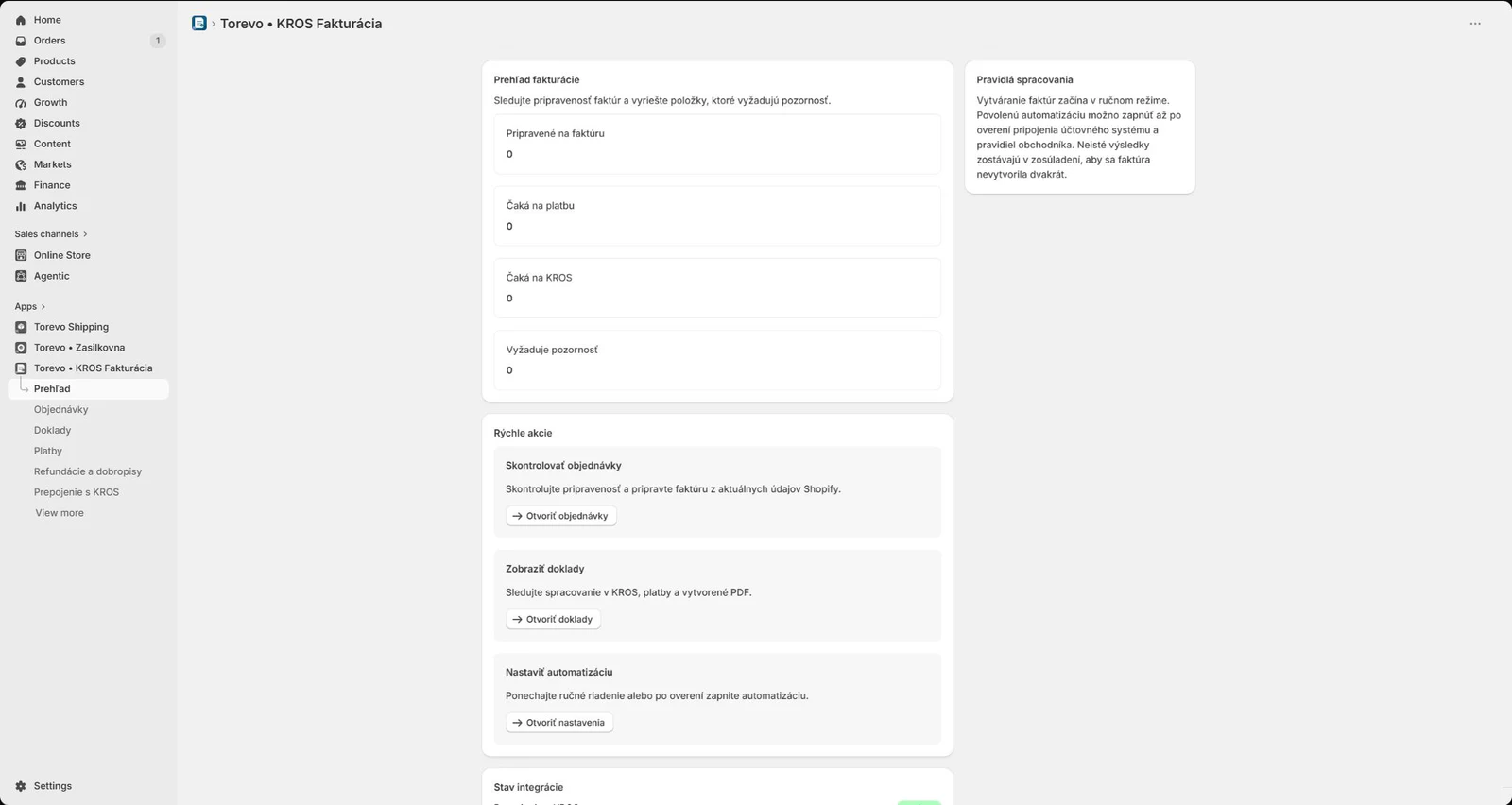
The dashboard is an operational overview, not an accounting ledger. Its four counters show orders that are ready, waiting for payment, waiting for KROS or requiring attention. Select a card to open the relevant list.
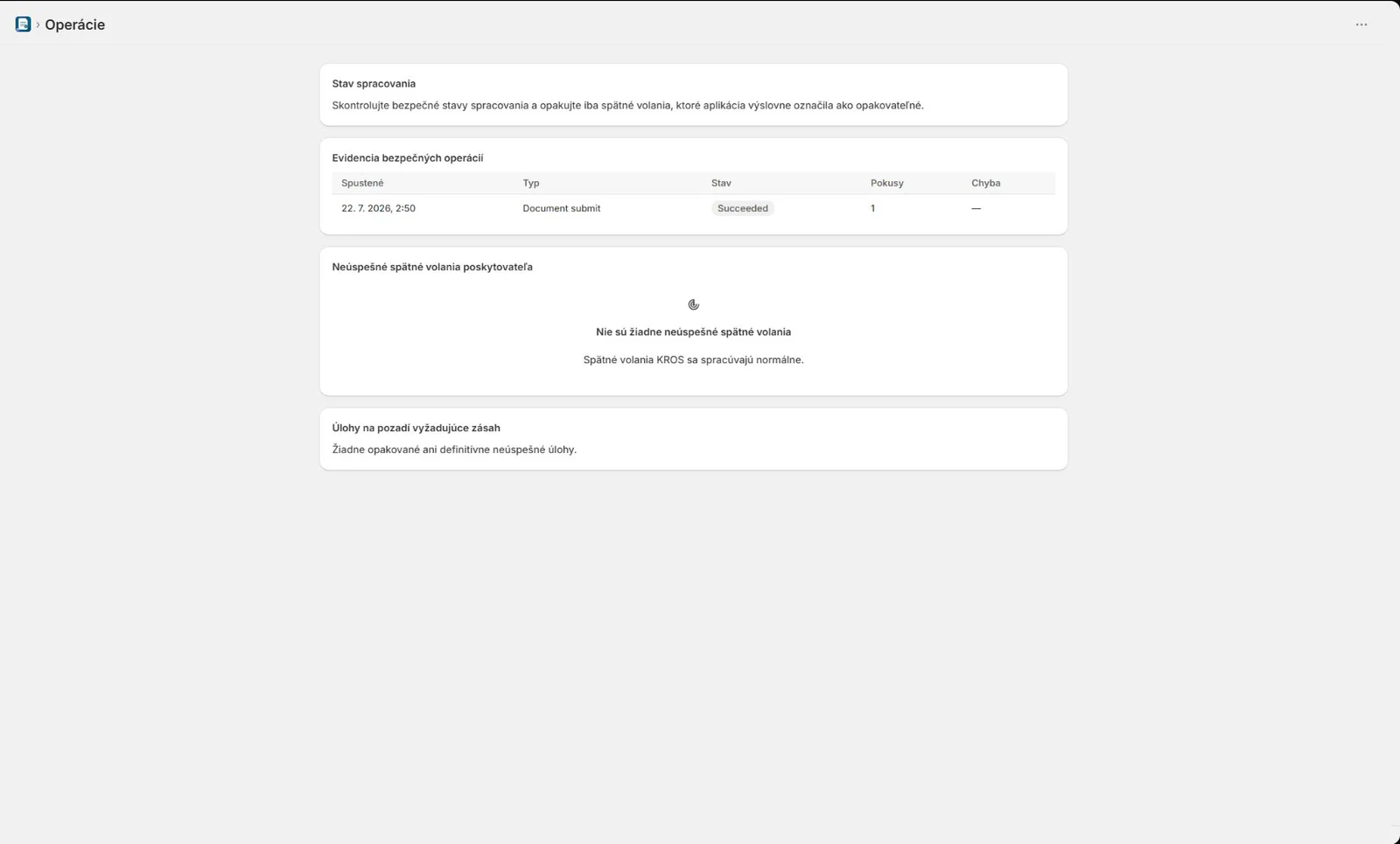
Quick actions link to orders, documents and settings. Before processing, Integration status should report an active KROS connection, normal Shopify event processing and a healthy worker. If a status is warning or critical, open Operations first instead of submitting the invoice again.
Orders and invoice preparation
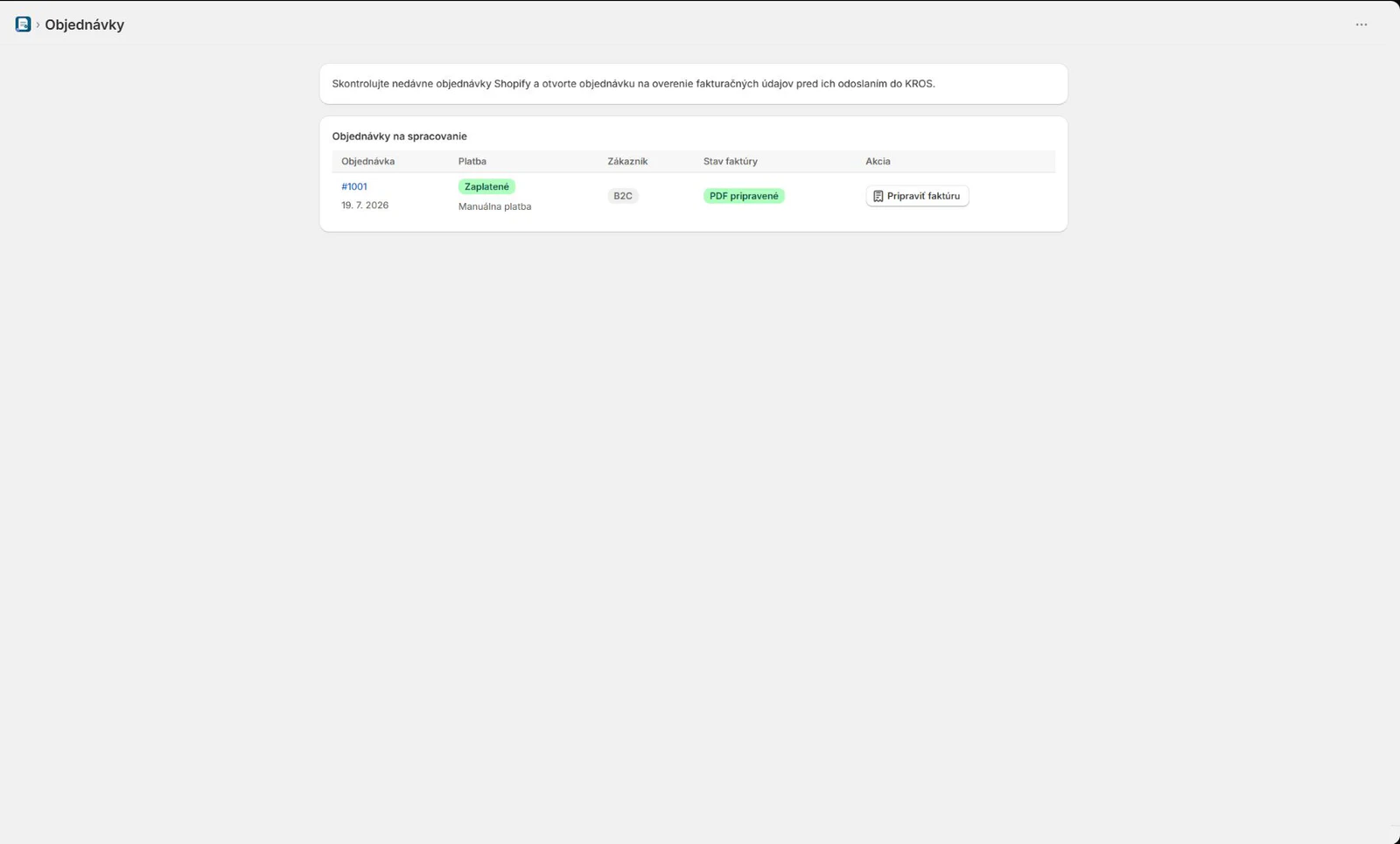
The Orders page lists recent Shopify orders together with their payment gateway, B2C/B2B classification and invoice state. Prepare invoice always fetches the current Shopify order. It is not a stale local copy.
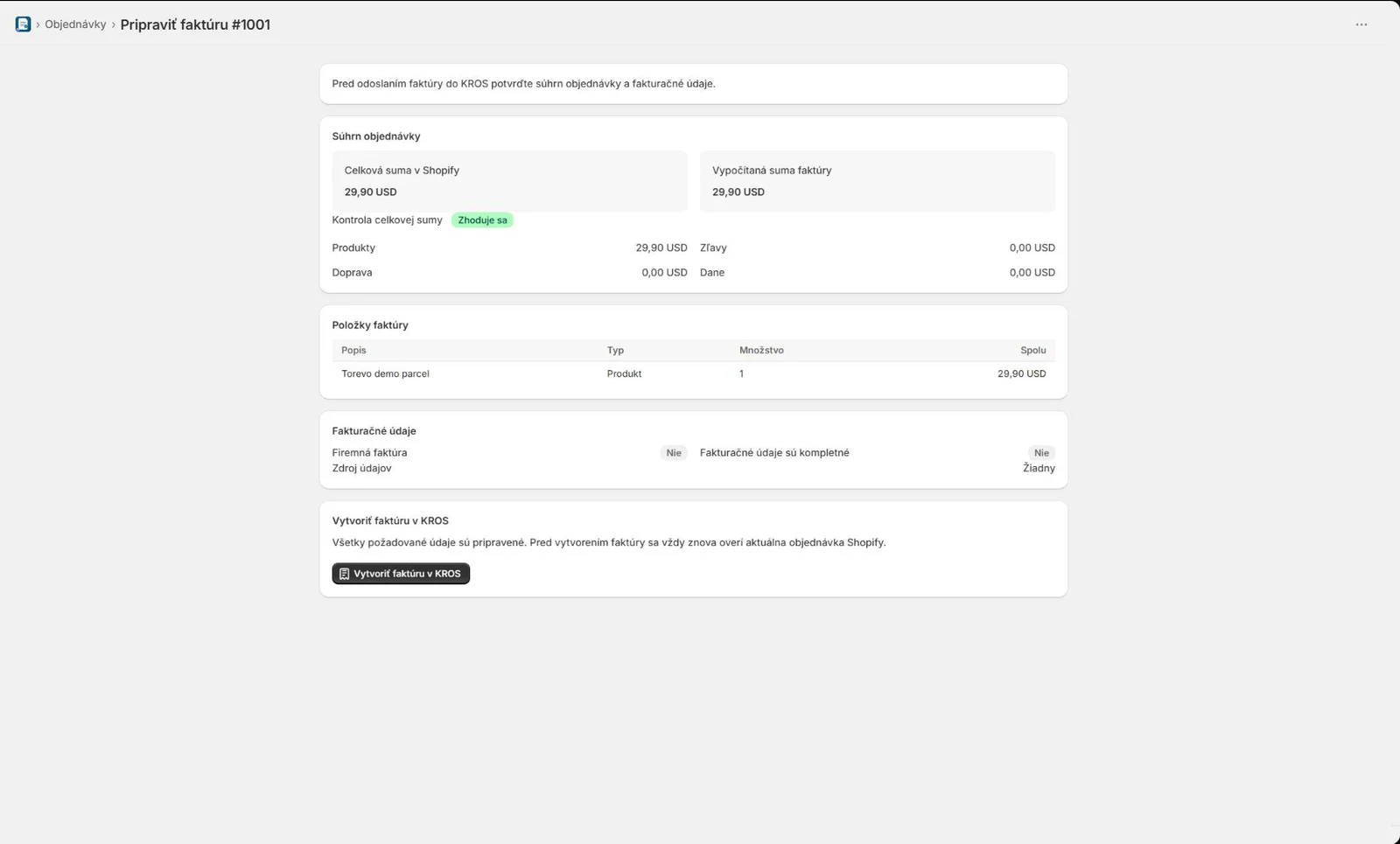
On the preparation page, verify:
- the calculated invoice total exactly matches Shopify,
- products, quantities, discounts, shipping, taxes and currency,
- whether the invoice is B2C or business,
- complete company details for a B2B order,
- the KROS account, numbering sequence, date policy and payment policy.
Select Create invoice in KROS only once. A processing state means asynchronous work, not failure. Use reconciliation if the outcome is uncertain.
Invoice actions on a Shopify order
The fastest workflow is available directly on the Shopify order:
- Open Shopify Admin → Orders and select an order.
- Find the pinned Torevo • KROS invoicing block.
- If no document exists, select Prepare invoice and complete the review.
- When the PDF is ready, select Open or print PDF.
- Use the browser print control or
Ctrl+P. The same window can download the PDF. - Open in KROS Fakturácia opens the corresponding KROS document in a new window.
- Manage invoice opens the Torevo document detail.
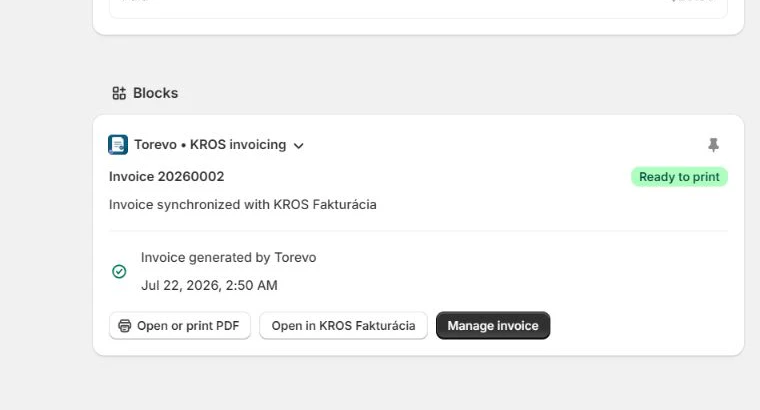
If the block is missing, open Blocks, add the app block and pin it for staff. When the invoice exists but its PDF is not ready, manage the document and retry PDF retrieval separately. Do not create another invoice to obtain a file.
Bulk generation and printing
Bulk workflows begin on the native Shopify Admin → Orders page:
- select only the orders you intend to process,
- choose Actions → Generate invoices with Torevo to run preflight and creation,
- unready orders are skipped with a reason and existing invoices are not created again,
- choose Print → Torevo • KROS Fakturácia to build one printable PDF from invoices whose PDFs are ready,
- review each result or open Bulk Actions for item-level progress.
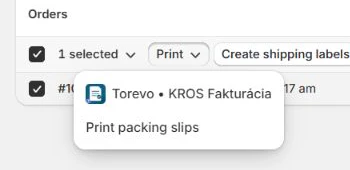
Never repeat an entire partially successful batch. Review the results, reconcile unknown items and continue only with failed or skipped orders.
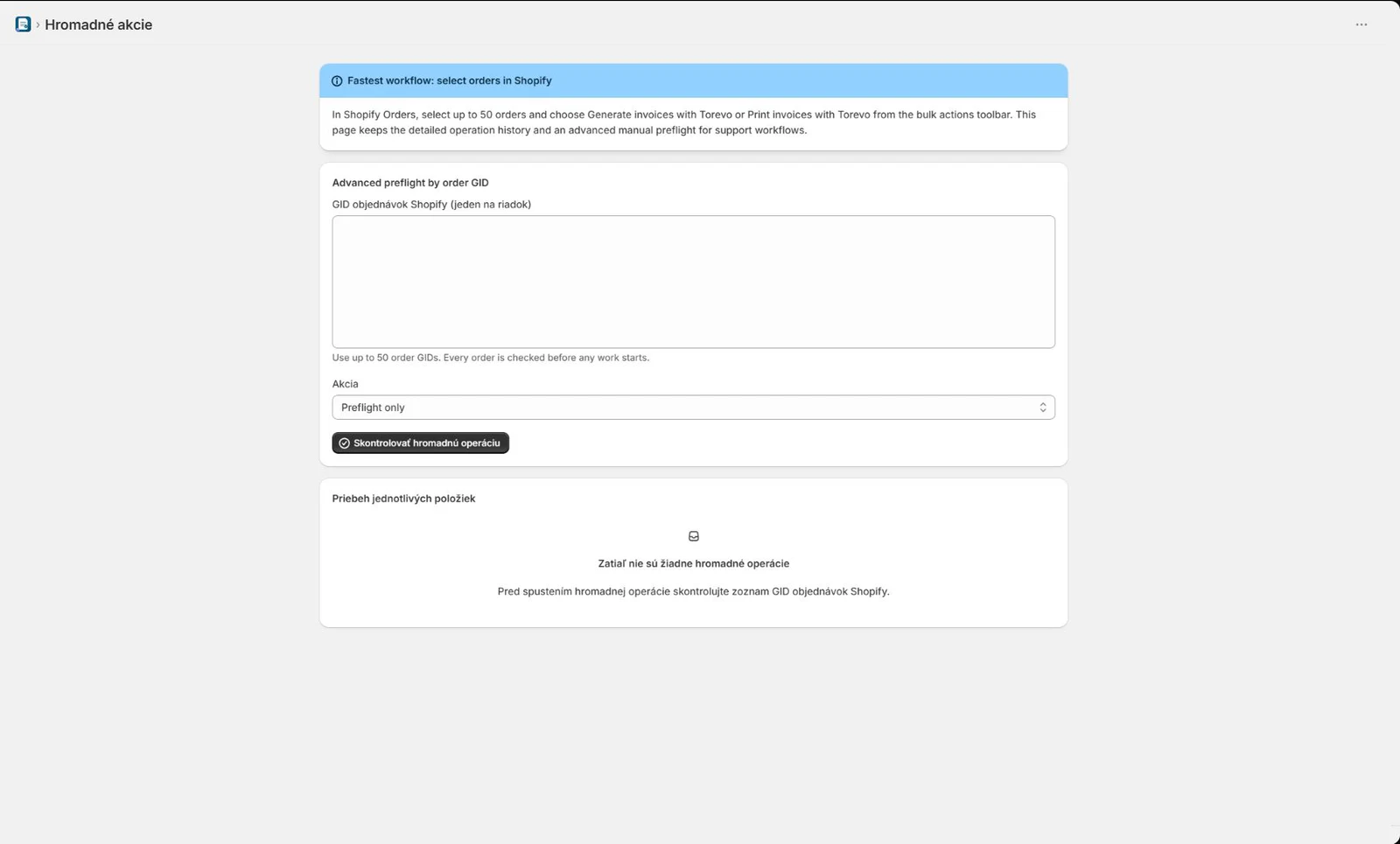
Documents and PDFs
Documents is the operational invoice ledger. Each row identifies the Shopify order, KROS status, document number, PDF state and safe follow-up actions. Use it to open or print a PDF, open the KROS document, retry PDF retrieval independently or inspect the related operation. If a payment entered directly in KROS is not delivered by callback, Refresh from KROS only reads the current state. It never creates a document or payment.
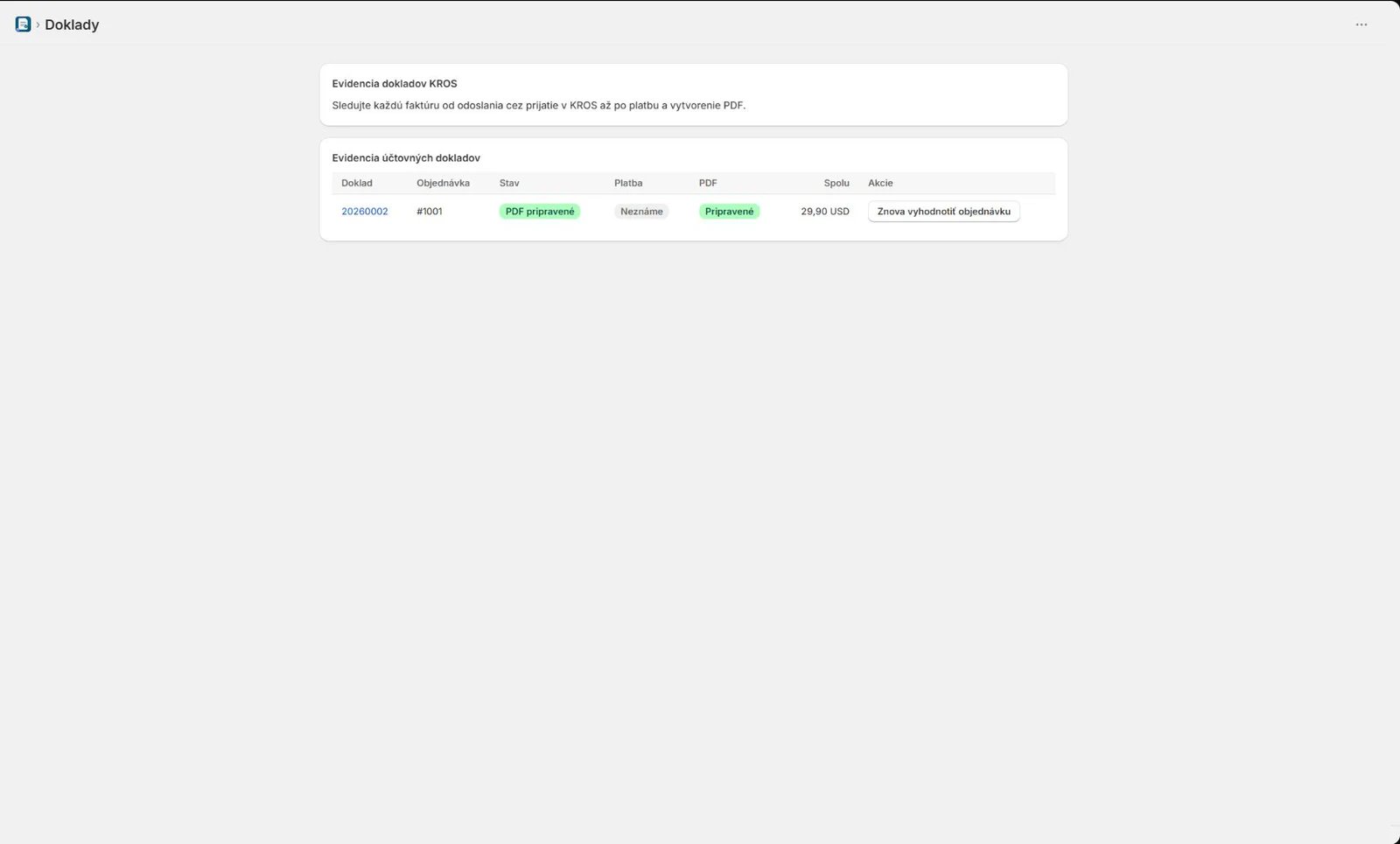
Payments, refunds and credit notes
Payments link a specific Shopify transaction to an accepted KROS invoice. Verify the amount, currency, gateway and operation state. Every transaction has an idempotency key, so a retry must not register the same payment twice.
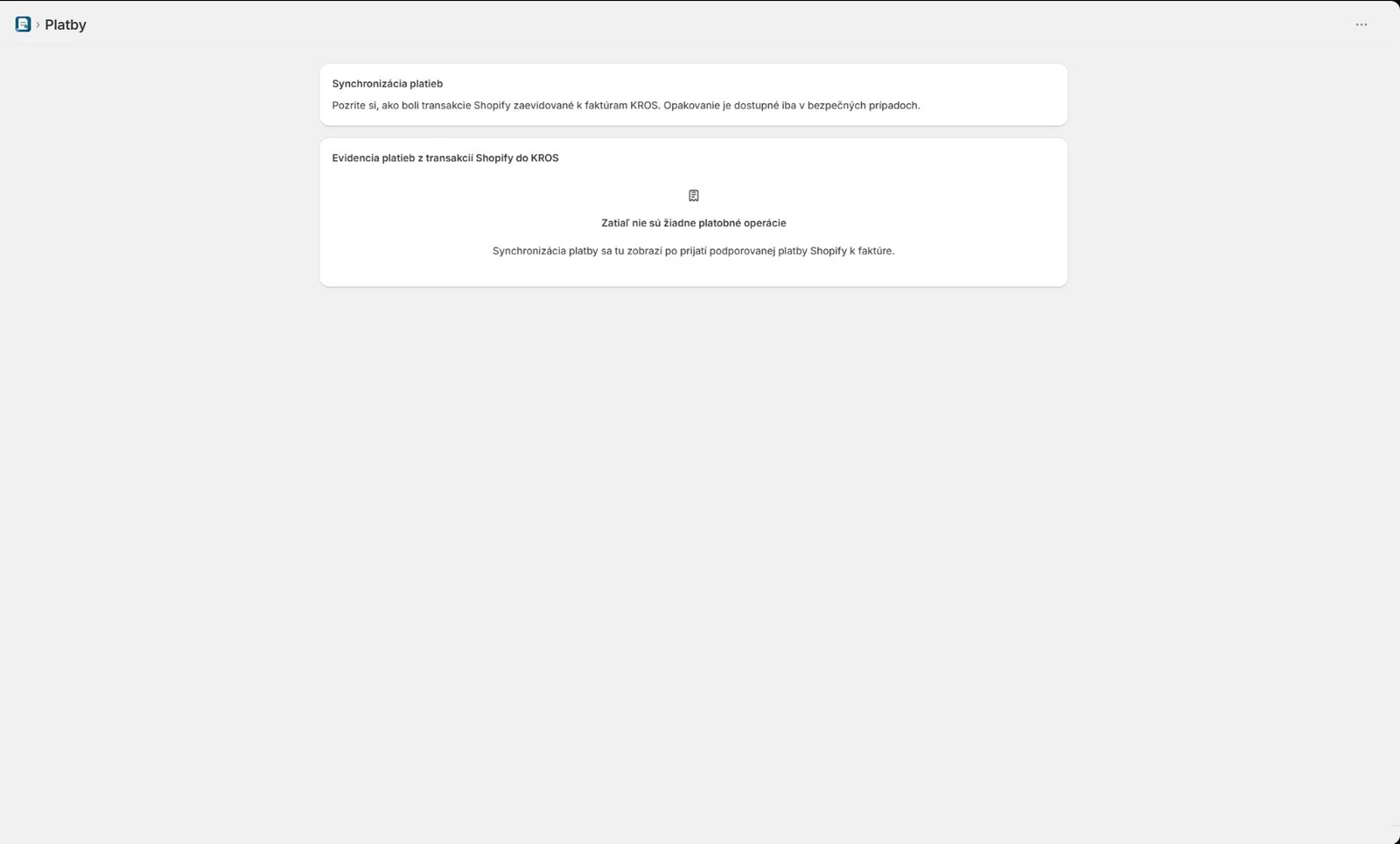
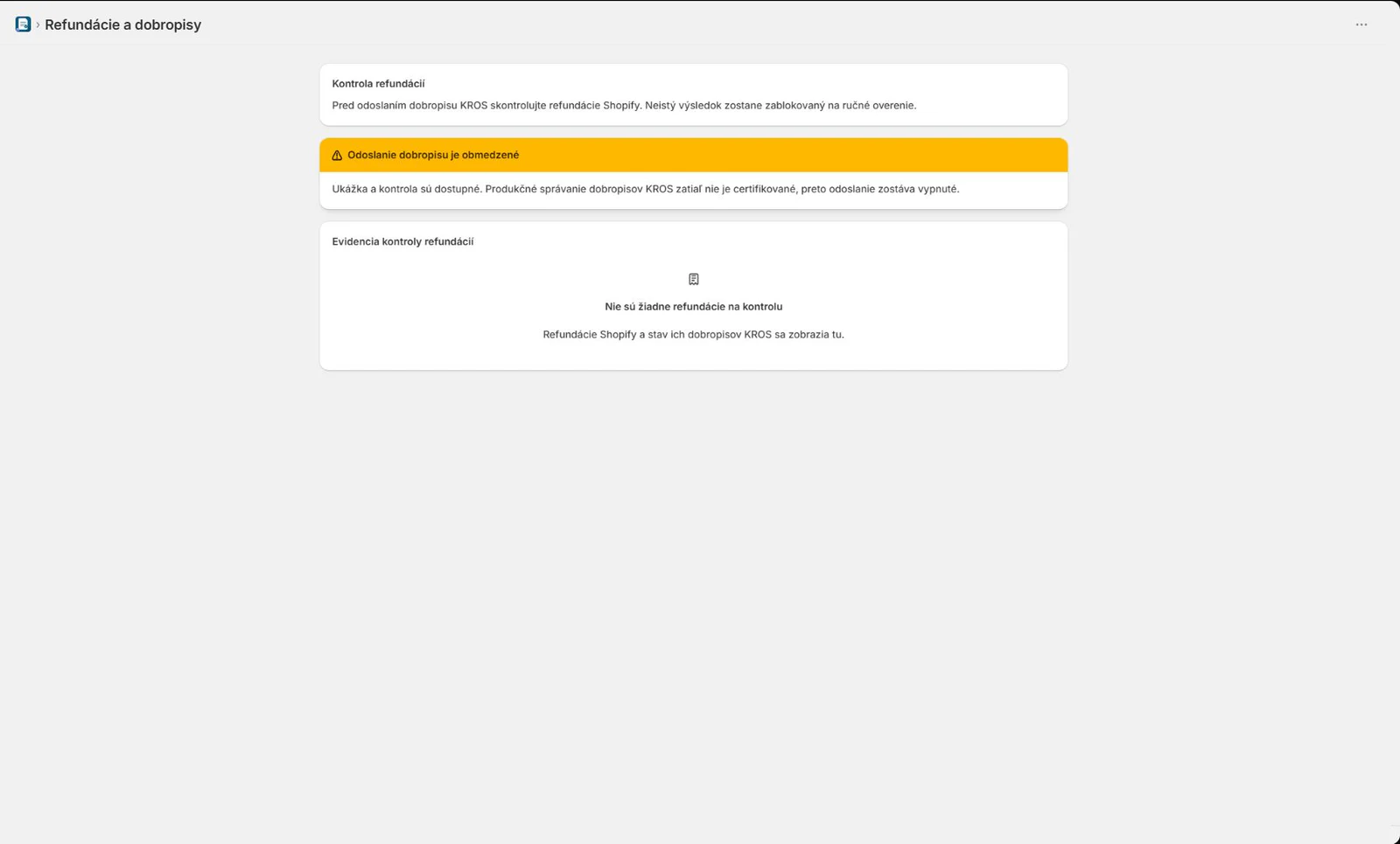
Refunds & Credit Notes are separate because a Shopify refund does not define an accounting-correct credit note by itself. Review the refund scope, tax, shipping and registered payments. The current KROS API does not support creating a credit note, so the app never submits one automatically. Create the credit note in KROS and close the Torevo review only after the accounting check.
KROS connection
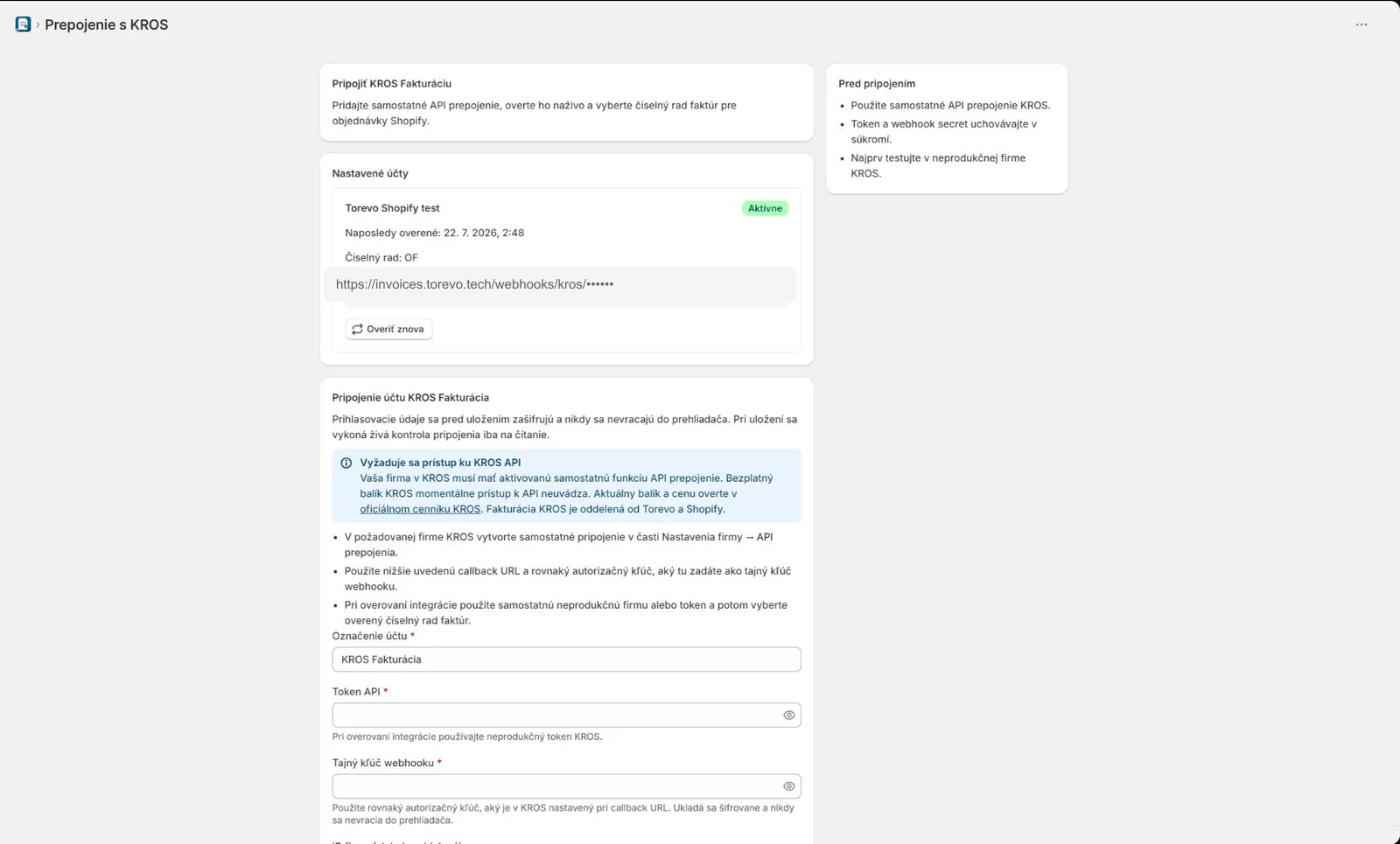
Use KROS connection to add your own KROS company, API token and webhook authorisation key. After verification, select a numbering sequence and copy the callback URL into the same KROS API connection.
The API token and webhook secret are write-only after storage. After rotating a token, run Verify again and confirm both company identity and numbering sequence. The required licence and full setup are documented in Connect a KROS Fakturácia account.
Settings and customer delivery
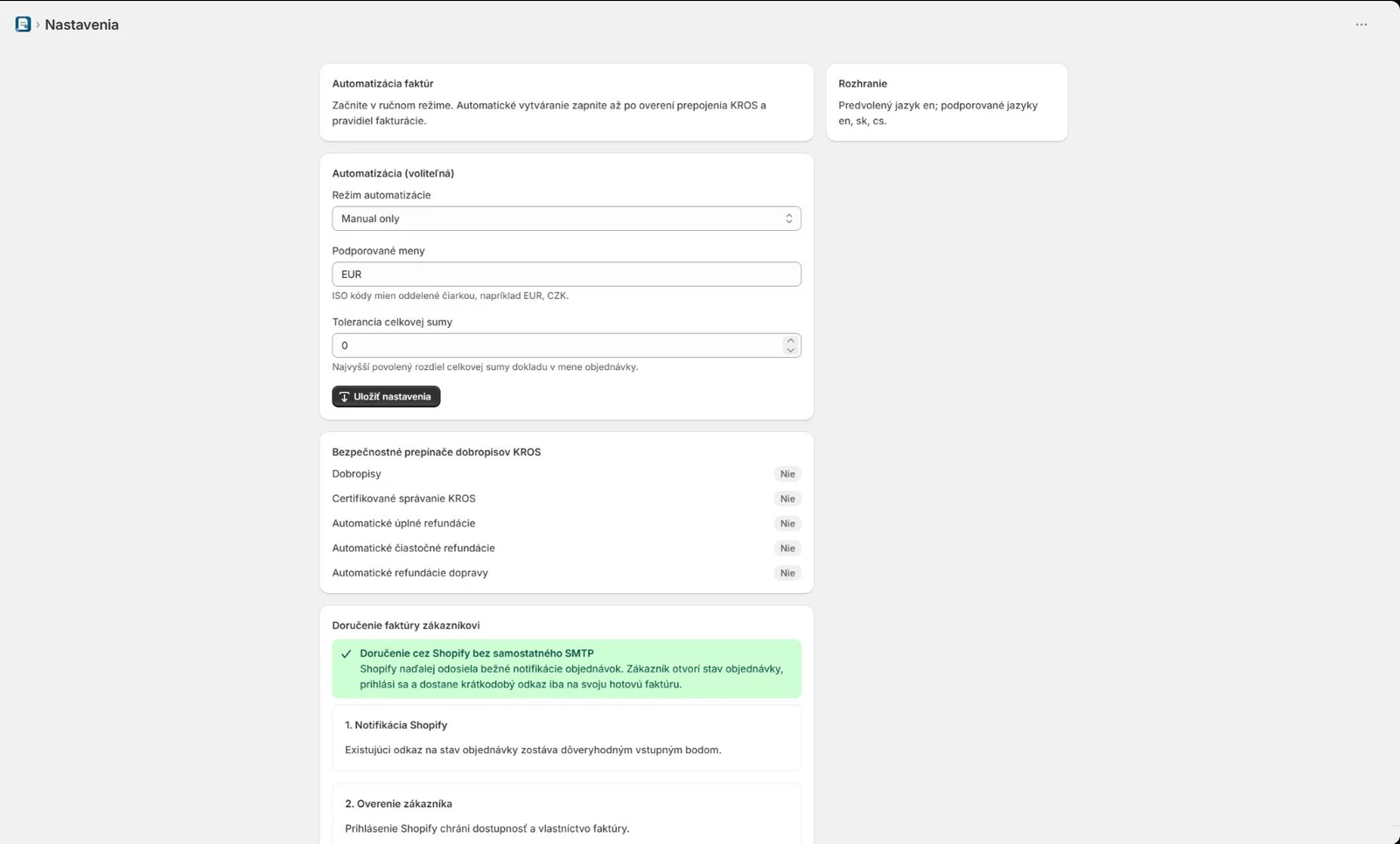
Settings controls automatic creation and customer invoice delivery. Manual mode is the recommended starting state. Credit notes have no enable switch because the current KROS API cannot create them.
Customer PDF delivery does not require a separate SMTP service:
- Shopify sends its normal notification.
- The customer opens the order status page and signs in.
- The Torevo block exposes only the invoice belonging to that order.
- Torevo issues a short-lived PDF URL.
You can copy the optional Liquid link from Customer invoice delivery into a selected Shopify notification. It links to the protected order page rather than a permanent public PDF.
Billing and plan
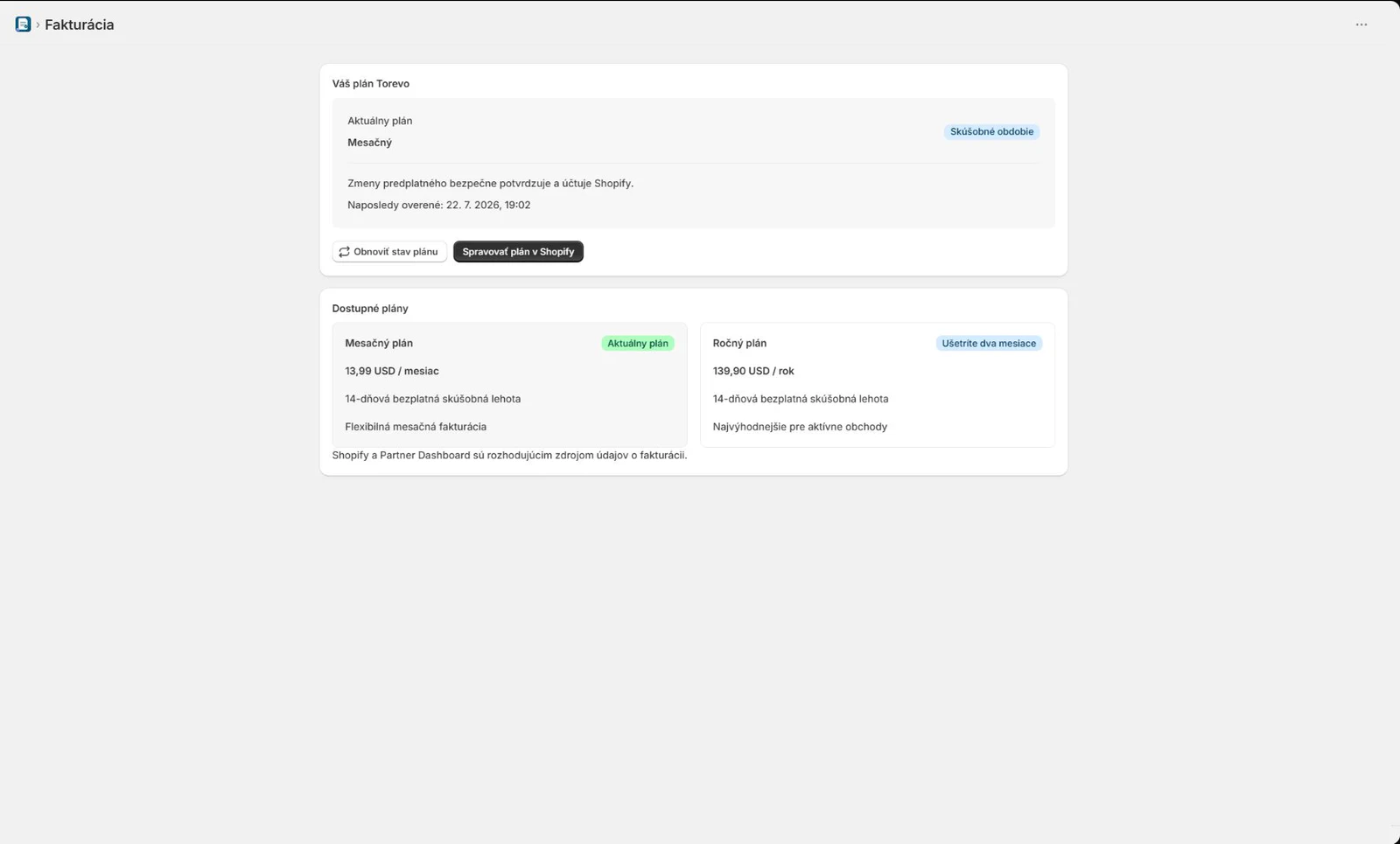
Billing reads the canonical subscription state from Shopify and shows the available monthly or annual plan. Shopify confirms plan changes and trials. When subscription verification needs attention, the app does not infer entitlement from stale local state.
Advanced and diagnostic pages
| Page | Purpose | Safe usage |
|---|---|---|
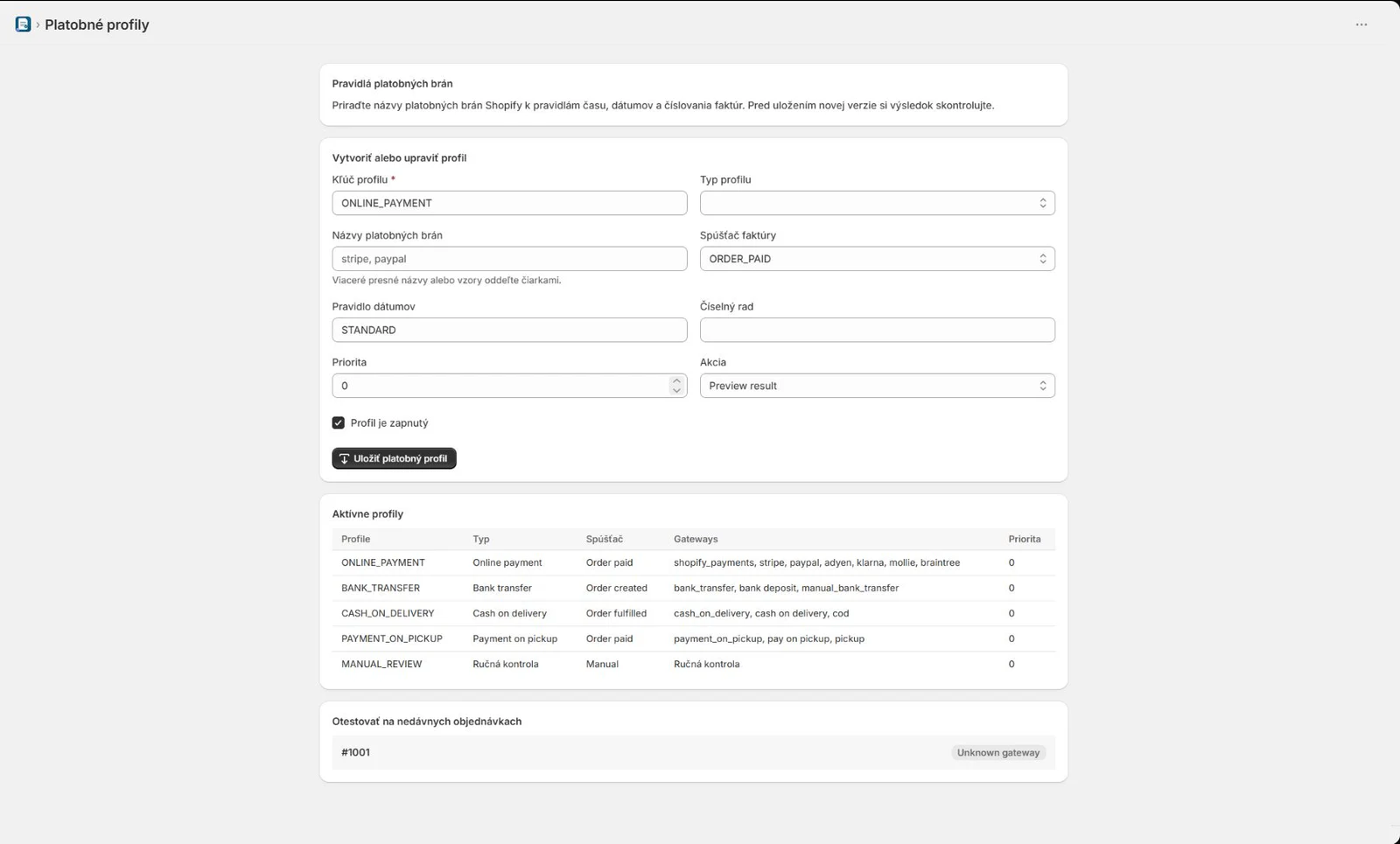
| Payment Profiles | map Shopify gateways to invoice and payment rules | test a new profile against recent orders before activation |
| Date Policies | control issue, supply and due-date sources | save a version and inspect the resulting PDF |
| Business Fields | map company ID, tax ID, VAT ID and B2B address | never invent missing data. Require review |
| Bulk Actions | inspect batch progress and item results | do not repeat successful items in a partial batch |
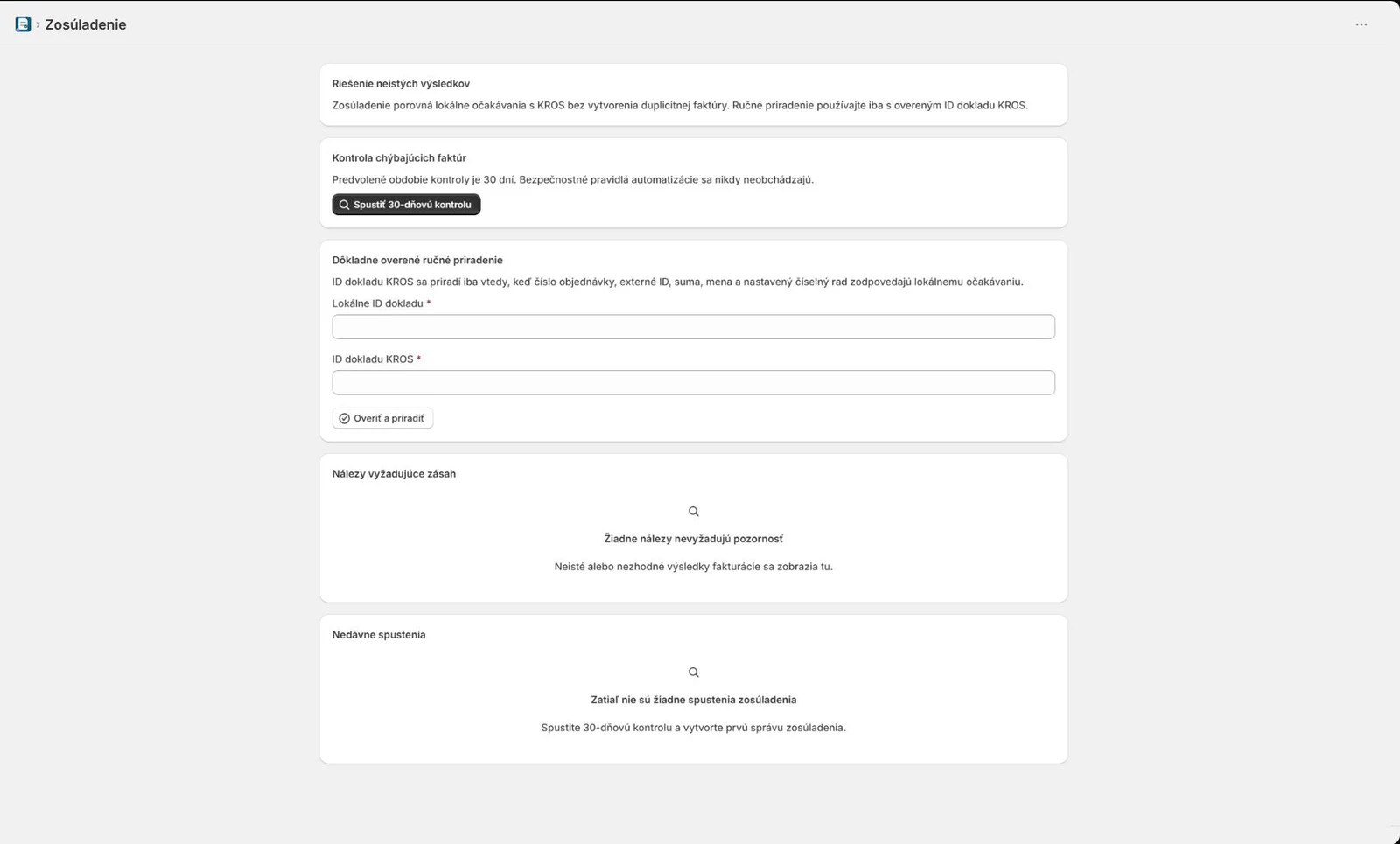
| Reconciliation | resolve a delayed callback or unknown result | attach only one strongly verified match |
| Operations | inspect workers, callbacks, retries and the safe ledger | retry only after understanding the original error |
| Audit | inspect history without durable customer payloads | use a safe ID, timestamp and event code |
| Pilot readiness | control rollout and approvals | allow production automation only after the checklist passes |
| Support | prepare the diagnostic bundle | review the preview and never add a token |
Recommended daily workflow
- Review integration health and attention items on the Dashboard.
- Prepare the invoice from Orders or directly on the Shopify order.
- Confirm totals, currency, tax, lines and customer identity before submission.
- Wait for the KROS result and PDF. Use Operations or Reconciliation if delayed.
- Print the ready invoice from the order block or Documents.
- Review payments and refunds independently.
- Use bulk actions only after the same scenario passes on one order.
Accounting policies and operational decisions are covered in Daily invoice operations.