
OpenCart 3 language pack installation
Install a language pack in OpenCart 3. This illustrated guide covers the correct ZIP, installation, language setup, storefront and checkout verification.
On this page
Want to run OpenCart 3 in Slovak, Czech or another language? This illustrated guide walks through choosing the correct file, installation, language setup and the final store check. It applies to every Torevo language pack for OpenCart 3.
The screenshots use the German pack on OpenCart 3.0.5.1, but the same workflow applies to Slovak, Czech and other catalogued languages. Explore the language catalogue or open the Torevo profile on OpenCart Marketplace.
Each paid pack includes translated language files for OpenCart Admin, the customer-facing storefront, checkout, customer account, system emails and the bundled core extensions present in the supported OpenCart source. The product also includes version-specific installers for supported releases, published compatibility and translation updates, technical installation support and this illustrated guide.
The maintained catalogue documents 85 languages. The OpenCart 3 packages were refreshed for 3.0.5.1. Each product uses one normal all-versions customer ZIP and does not include an OpenCart Cloud download. Confirm the current public availability of the required language on its Marketplace page.
OpenCart 3 installs the selected package directly, requires a Modifications refresh and then requires the language to be added manually. It does not use the OpenCart 4 registration module. OpenCart Cloud delivery is not offered for OpenCart 3 products.
Before installation
Prepare:
- an administrator account allowed to manage Installer, Modifications, Languages and Settings,
- the exact four-part OpenCart 3 version, for example
3.0.5.1, - a file and database backup,
- the language pack purchased through OpenCart Marketplace,
- a test product in the cart so the complete checkout can be verified.
At this guide’s review on 16 August 2026, the official OpenCart repository identified 3.0.5.1, published on 11 August 2026, as the current OpenCart 3 release. Always use the compatibility list on the purchased product and select an installer for the exact store version.
Select the correct installer
The Marketplace customer download is an outer ZIP containing installers for all supported OpenCart 3 versions. It is not itself an OpenCart installer.
- Extract the downloaded all-versions ZIP on your computer.
- Open
VERSION-MAP.md. - Find the exact version reported by your store.
- Open the matching directory under
installers/. - Upload only the inner file ending in
.ocmod.zip.
If the selected file contains VERSION-MAP.md and an installers directory, it is still the customer bundle. Extract it first. The correct inner installer has one exact OpenCart version in its filename.
1. Upload and install the package
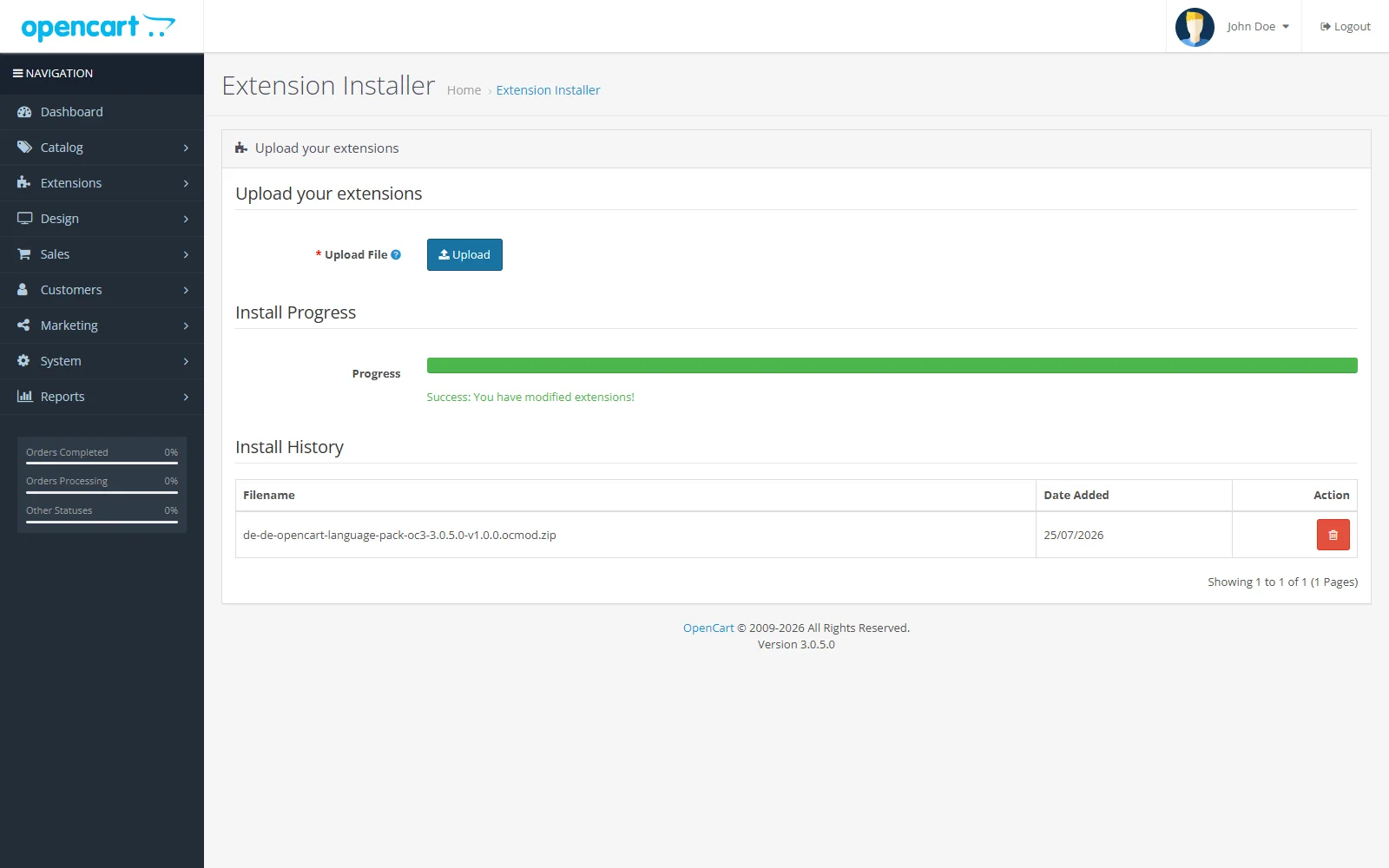
In Admin, open Extensions → Installer, select Upload and choose the matching inner .ocmod.zip. OpenCart 3 processes the upload and installation in one workflow. Wait until the progress bar is complete and the success message is visible.
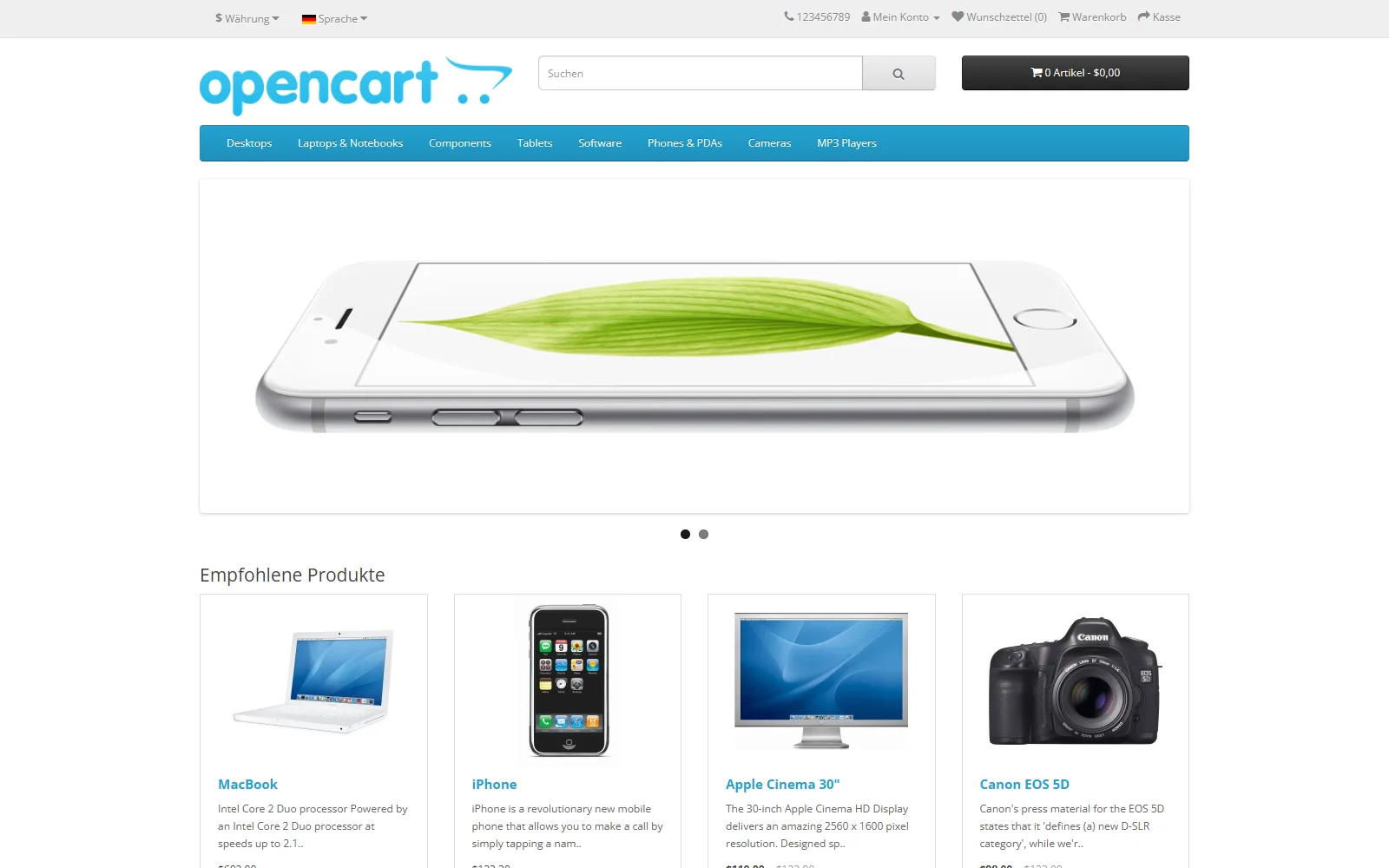
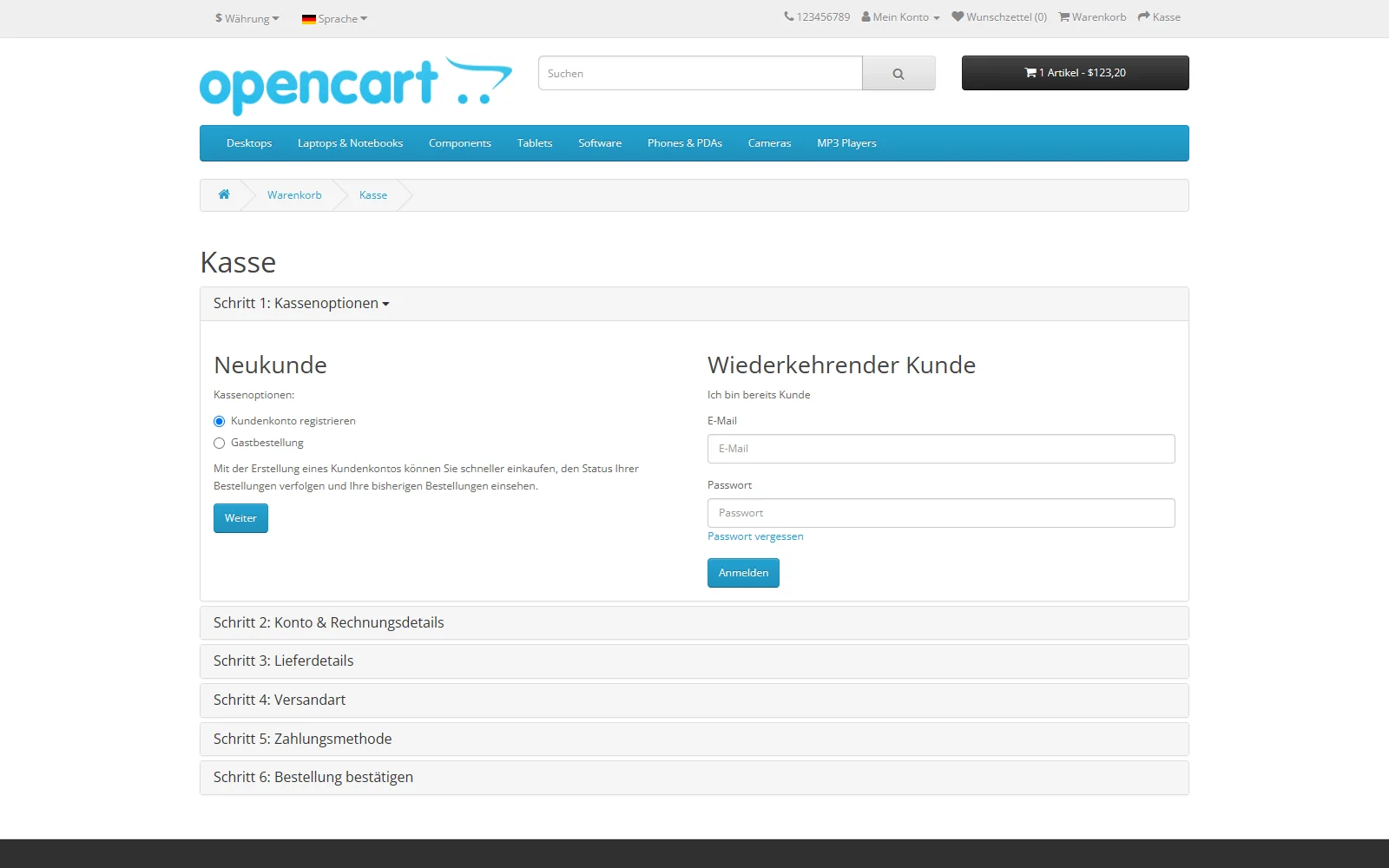
The Admin screenshots deliberately use English so the menu labels match these instructions. German is enabled on the storefront and checkout screenshots to demonstrate the installed translation.
2. Refresh Modifications
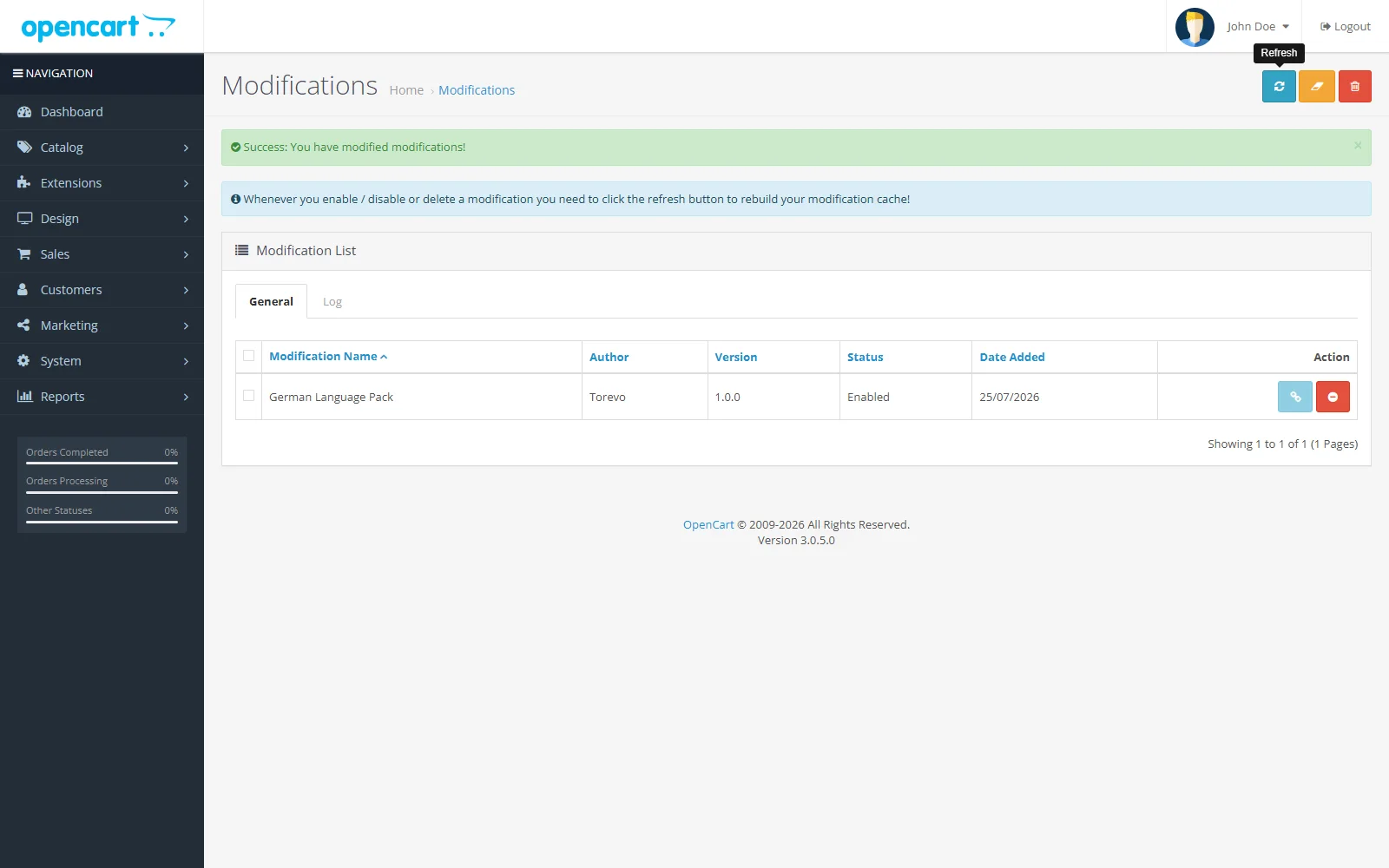
Open Extensions → Modifications and select Refresh. This rebuilds the OpenCart modification cache after the package files are deployed.
3. Add the language
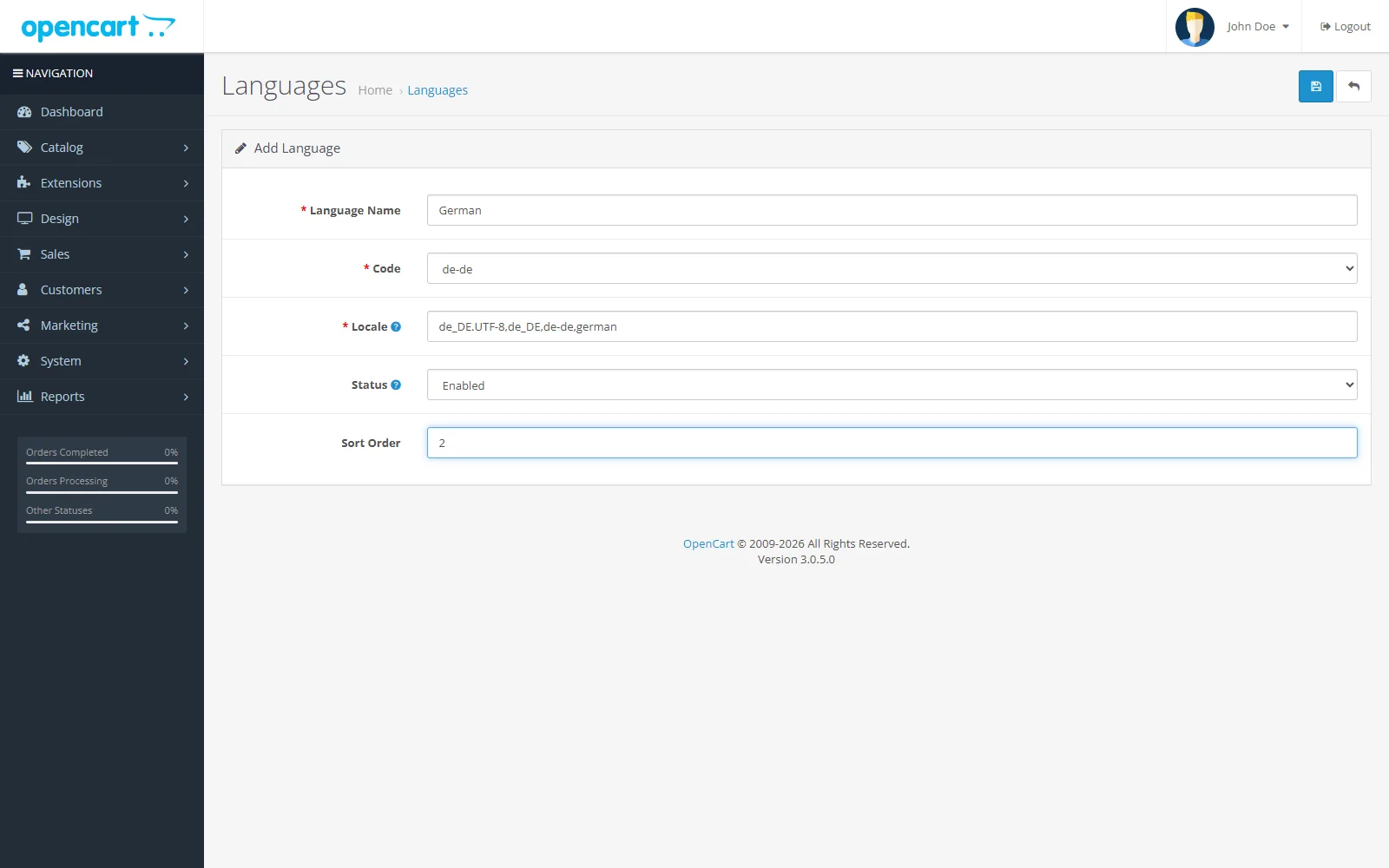
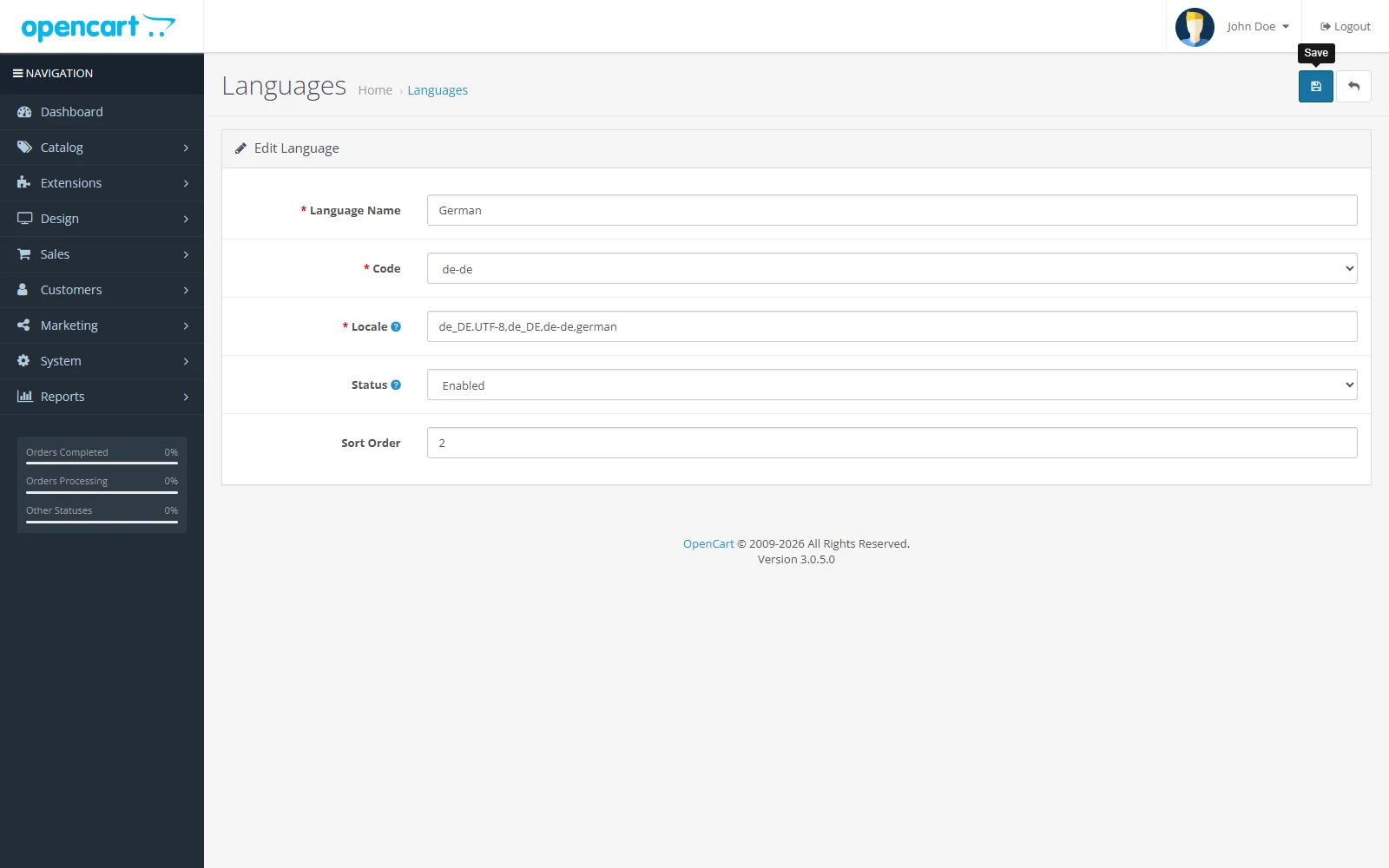
Open System → Localisation → Languages and select Add New. Enter the values supplied with the purchased language pack. For the German example:
| Field | Value |
|---|---|
| Language Name | German |
| Code | de-de |
| Locale | de_DE.UTF-8,de_DE,de-de,german |
| Status | Enabled |
| Sort Order | 2 |
The code must match the installed language directory. Do not invent a shortened or regional variant.
The form layout and required fields may differ slightly between supported OpenCart 3 releases. Always take the exact code, locale and other values from the documentation supplied with the specific pack.
4. Verify the language record
Return to the language list. The new language must appear beside English with the expected code and enabled state.
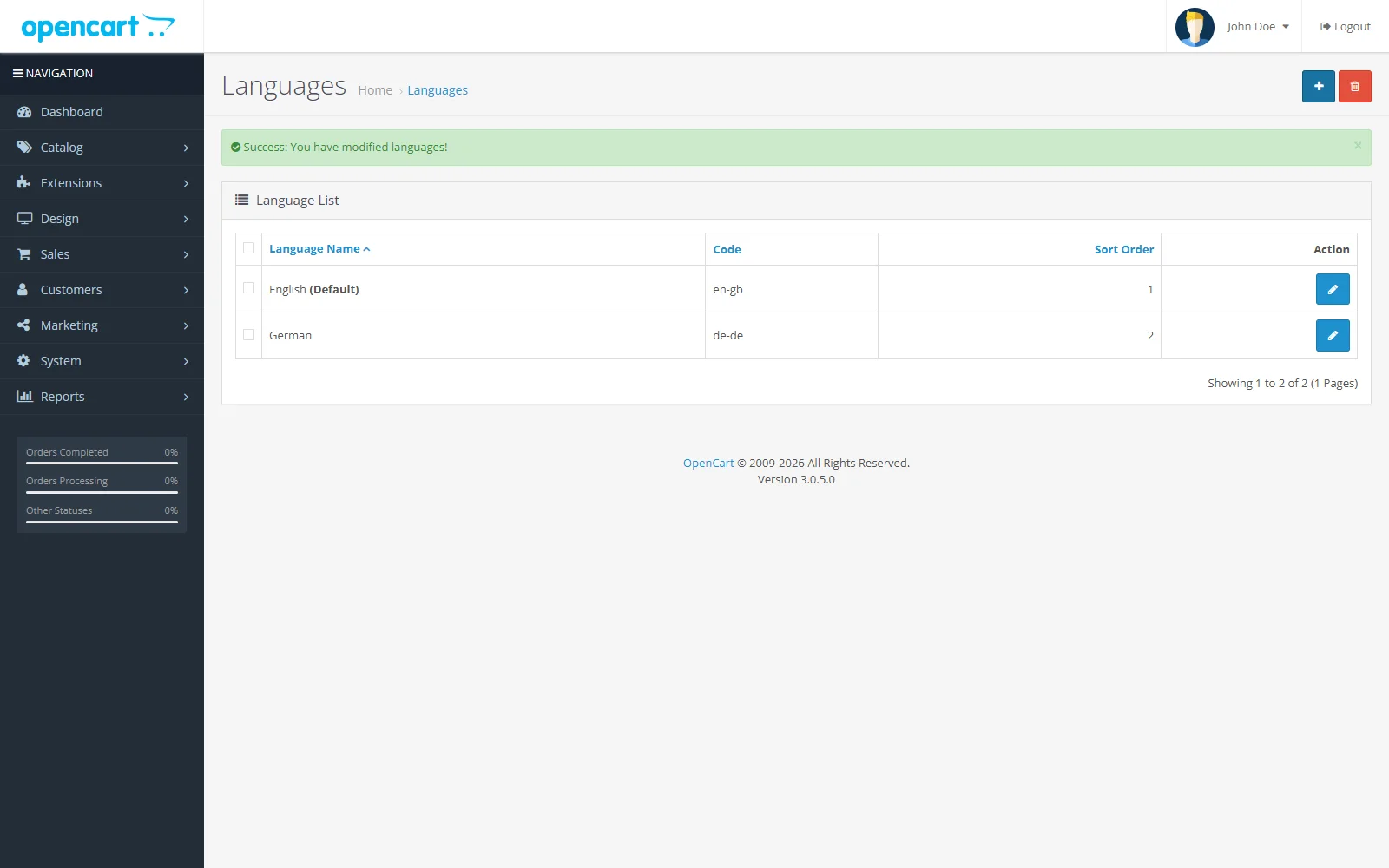
Open the edit form once and confirm that the saved name, code, locale, status and sort order are unchanged.
5. Select storefront and Admin languages
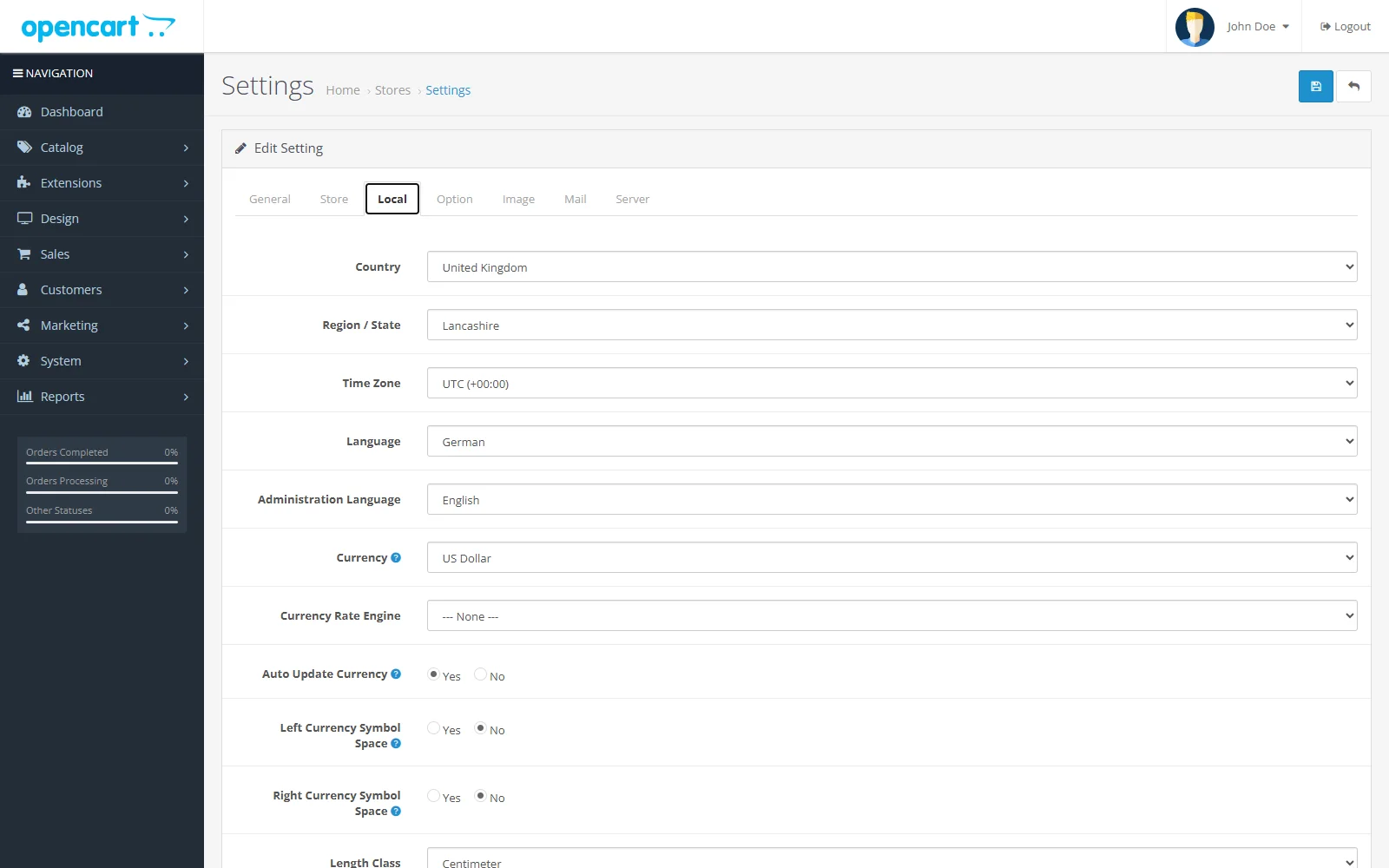
Open System → Settings, edit the default store and open the Local tab. Select the new language under Language. Choose the preferred Administration Language separately. Keeping Admin in English while testing is often safer.
6. Verify storefront and checkout
Open the storefront in a new private window or sign out of the current customer session. Check the home page, category, product, cart, checkout, customer account and system messages.
Updating
Back up files and the database. Temporarily select another storefront and Admin language, uninstall the previous package through the normal OpenCart extension workflow, install the new inner installer for the exact store version, refresh Modifications and verify the existing language record. Restore the preferred defaults only after storefront and checkout tests pass.
Download the current all-versions ZIP from the same Marketplace product and extract it again. Do not reuse an inner installer from another OpenCart patch release, and do not look for a Cloud package: Cloud delivery is not part of the OpenCart 3 products.
Uninstalling
Never remove a language while it is the storefront or Admin default. Select another language in Settings first, remove the language under Localisation, uninstall the package and refresh Modifications.
Troubleshooting
| State | Most likely cause | Resolution |
|---|---|---|
| Installer rejects the ZIP | outer all-versions bundle or wrong version was uploaded | extract the customer ZIP and select the exact inner installer through VERSION-MAP.md |
| files installed but language is absent | OpenCart 3 does not register it automatically | add it manually under System → Localisation → Languages |
| language code is not offered | wrong package version or incomplete installation | verify the installer, refresh Modifications and reinstall on a backed-up test store |
| storefront remains in English | new language was not selected for the default store or an old session is active | save System → Settings → Local and test in a fresh browser session |
| some catalogue text remains in English | it is merchant-authored product, category or information content | translate the relevant catalogue records separately |
If the problem remains, send support the package filename, exact OpenCart version, failing step and visible error text. Never send passwords, tokens, database exports or customer data.