
OpenCart 4 and Cloud language pack installation
Install a language pack in OpenCart 4 or OpenCart Cloud. This illustrated guide covers the correct ZIP, activation, store settings and checkout verification.
On this page
Want to run OpenCart 4 in Slovak, Czech or another language? This illustrated guide walks through choosing the correct file, installation, activation and the final store check. It applies to every Torevo language pack for OpenCart 4, including direct packages for supported OpenCart Cloud releases.
The illustrated screens use German on OpenCart 4.1.0.3. The package-selection and activation workflow was reviewed again for 4.1.0.4. The same steps apply to Slovak, Czech and other catalogued languages. Explore the language catalogue or open the Torevo profile on OpenCart Marketplace.
Each paid Torevo language pack includes the translated OpenCart Admin, customer-facing storefront, checkout, customer account, system-email strings and the language files for bundled core extensions. The standard download provides separate installers for the exact OpenCart 4 versions shown on the product page. Supported Cloud releases receive a direct Cloud installer. Published compatibility and translation updates, technical installation support and this illustrated guide are part of the product.
The maintained catalogue documents 85 languages. The OpenCart 4 packages and compatibility were refreshed through 4.1.0.4. The normal customer ZIP contains the supported self-hosted installers. The separate Cloud download contains one direct .ocmod.zip for 4.1.0.4 only. Confirm current public availability on the individual Marketplace product.
OpenCart 4 first deploys the files in Extensions → Installer. The language is registered only after the language-pack module is installed separately in Extensions → Extensions → Modules. A package shown as installed in Installer does not mean the language is active.
Before installation
Prepare:
- an administrator account allowed to manage Installer, extensions, languages and store settings,
- the exact four-part OpenCart version, for example
4.1.0.4, - a file and database backup, or a snapshot of the test Cloud store,
- the language pack purchased through OpenCart Marketplace,
- a test product in the cart so checkout can be verified after activation.
OpenCart documents that an installable package ends in .ocmod.zip, is uploaded through Extensions → Installer, and its module is then installed through Extensions → Extensions → Modules. See the official OpenCart extension procedure.
At this guide’s review on 16 August 2026, the official OpenCart repository identified 4.1.0.4, published on 11 August 2026, as the current OpenCart 4 release.
Select the correct file
| Store type | Marketplace download | File to upload to OpenCart |
|---|---|---|
| Standard OpenCart 4 | outer ZIP containing all supported versions | extract it on your computer, find the exact version in VERSION-MAP.md, and upload only the matching inner .ocmod.zip |
| OpenCart Cloud | direct Cloud package for one exact version | upload the supplied ...cloud_opencart_4_1_0_4.ocmod.zip directly. Do not extract or rename it |
A Cloud package is deliberately tied to one exact OpenCart version. Its filename, package code, controller namespace and internal paths must remain aligned. After the Cloud runtime is upgraded, use a new package explicitly prepared for that version.
For a standard Marketplace download, do not upload the ZIP that contains the installers directory. Extract it locally first. A Cloud download is different: the supplied file is already the direct installer and must not be extracted again.
1. Upload the exact installer
In Admin, open Extensions → Installer, select the upload control, and choose the correct .ocmod.zip. The current German Cloud file is named torevo_german_language_cloud_opencart_4_1_0_4.ocmod.zip.
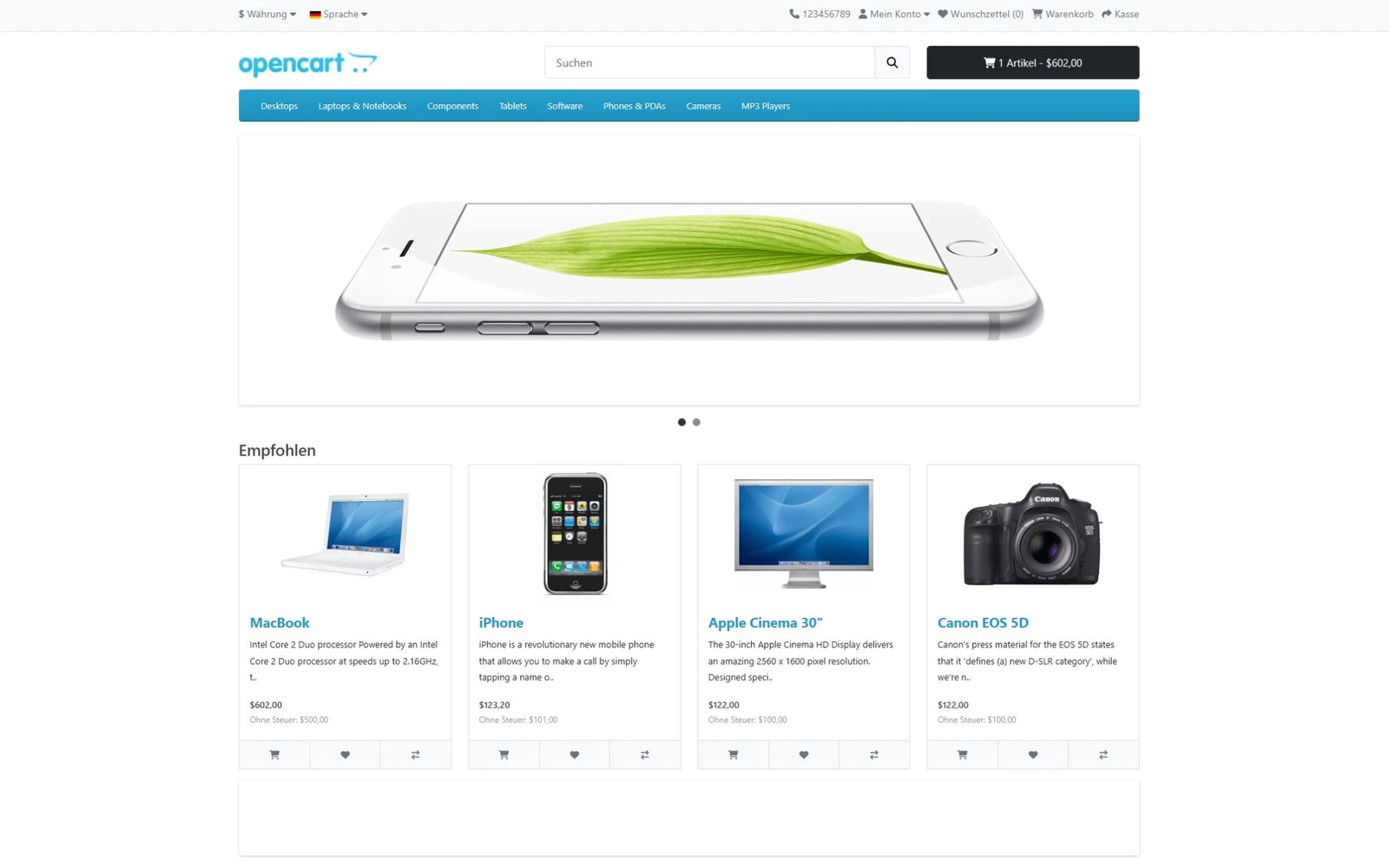
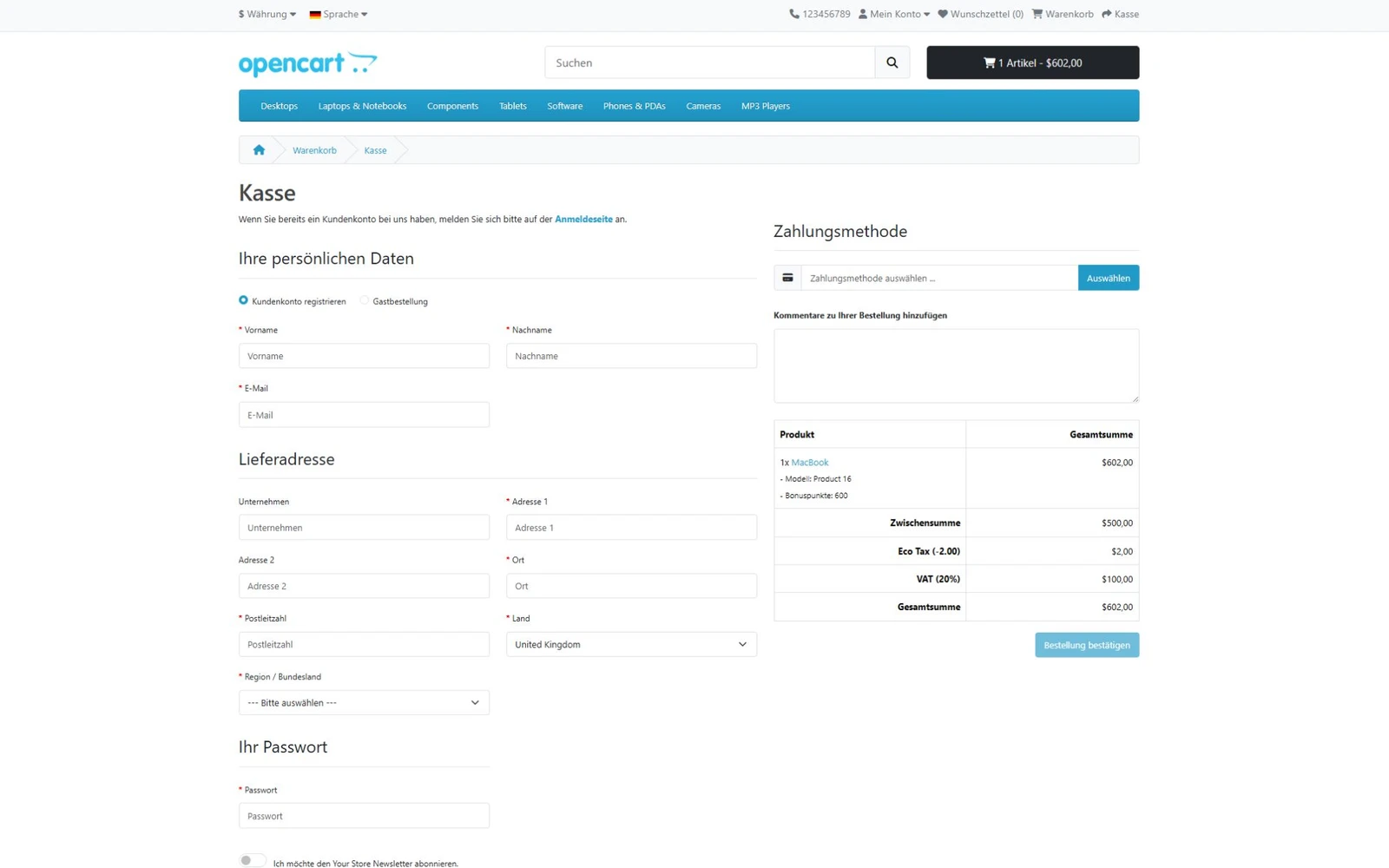
The Admin screenshots in this guide deliberately use the English OpenCart interface so that the menu names match the installation steps. German remains active on the storefront and checkout screenshots to demonstrate the installed translation.
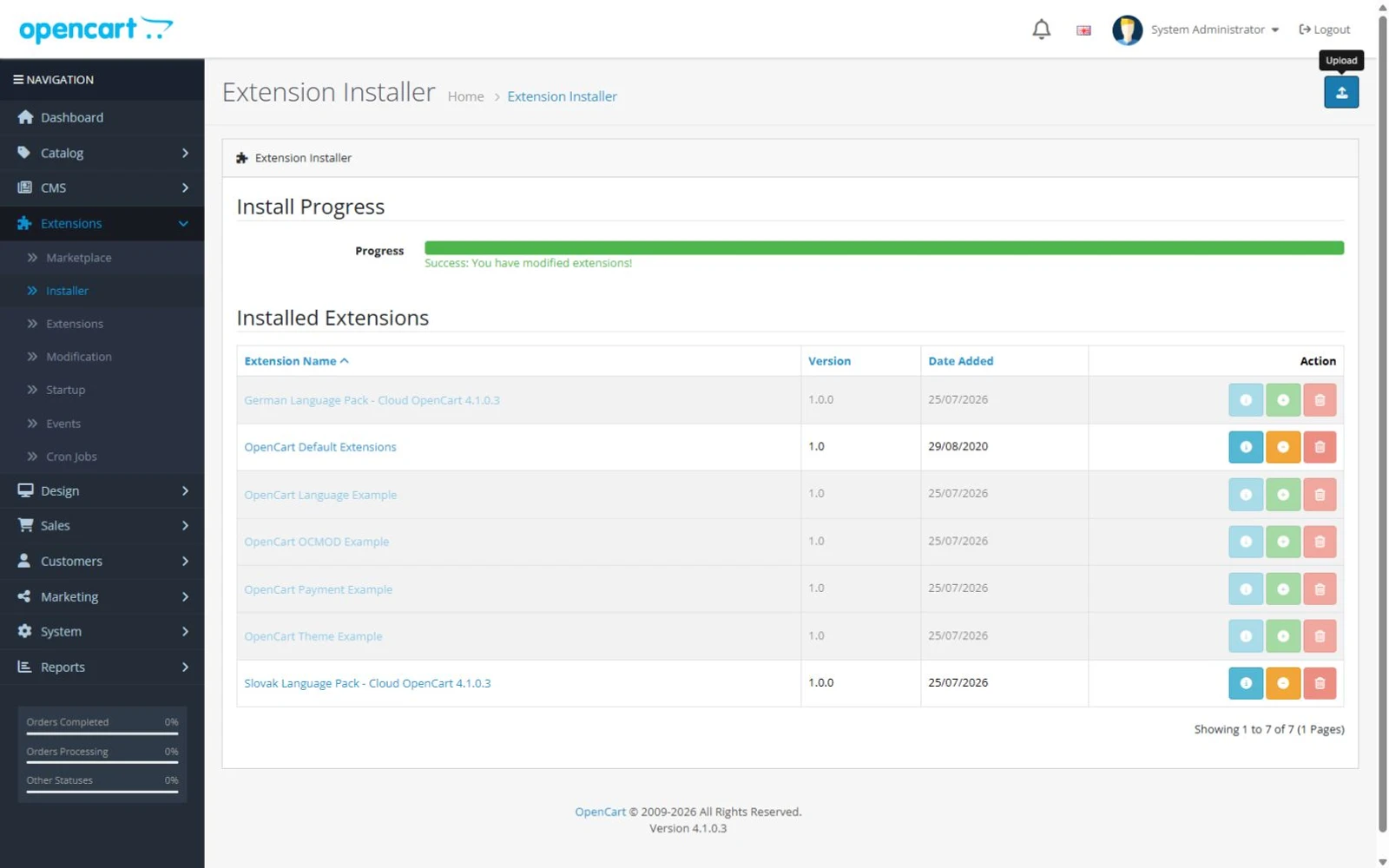
2. Install the uploaded package
In the Installer list, select Install for the uploaded package. This copies the files into the extension area. After a successful operation, the package remains listed as installed.
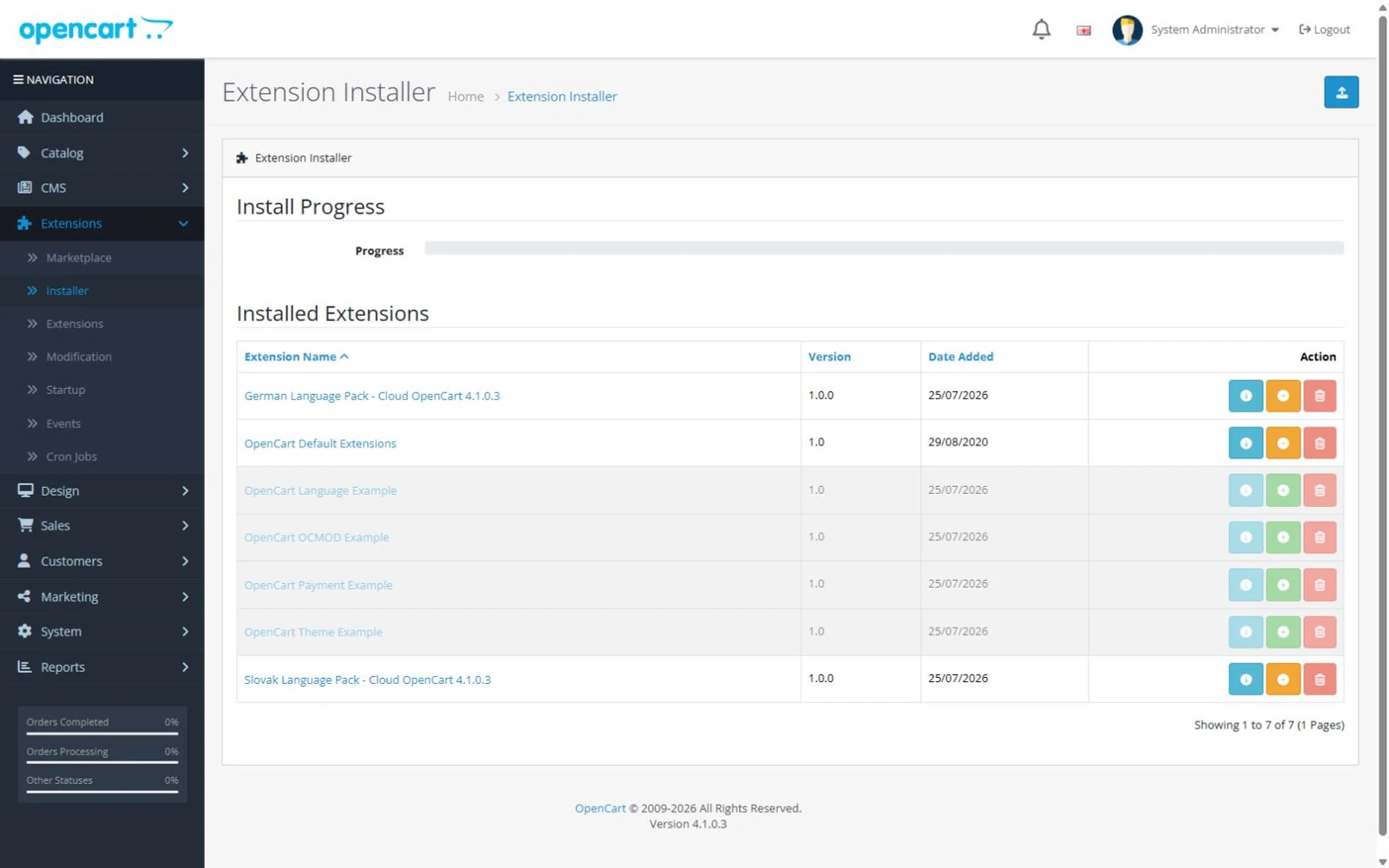
3. Activate the registration module
Open Extensions → Extensions, select Modules, and find the purchased language, for example German Language Pack. Select Install once.
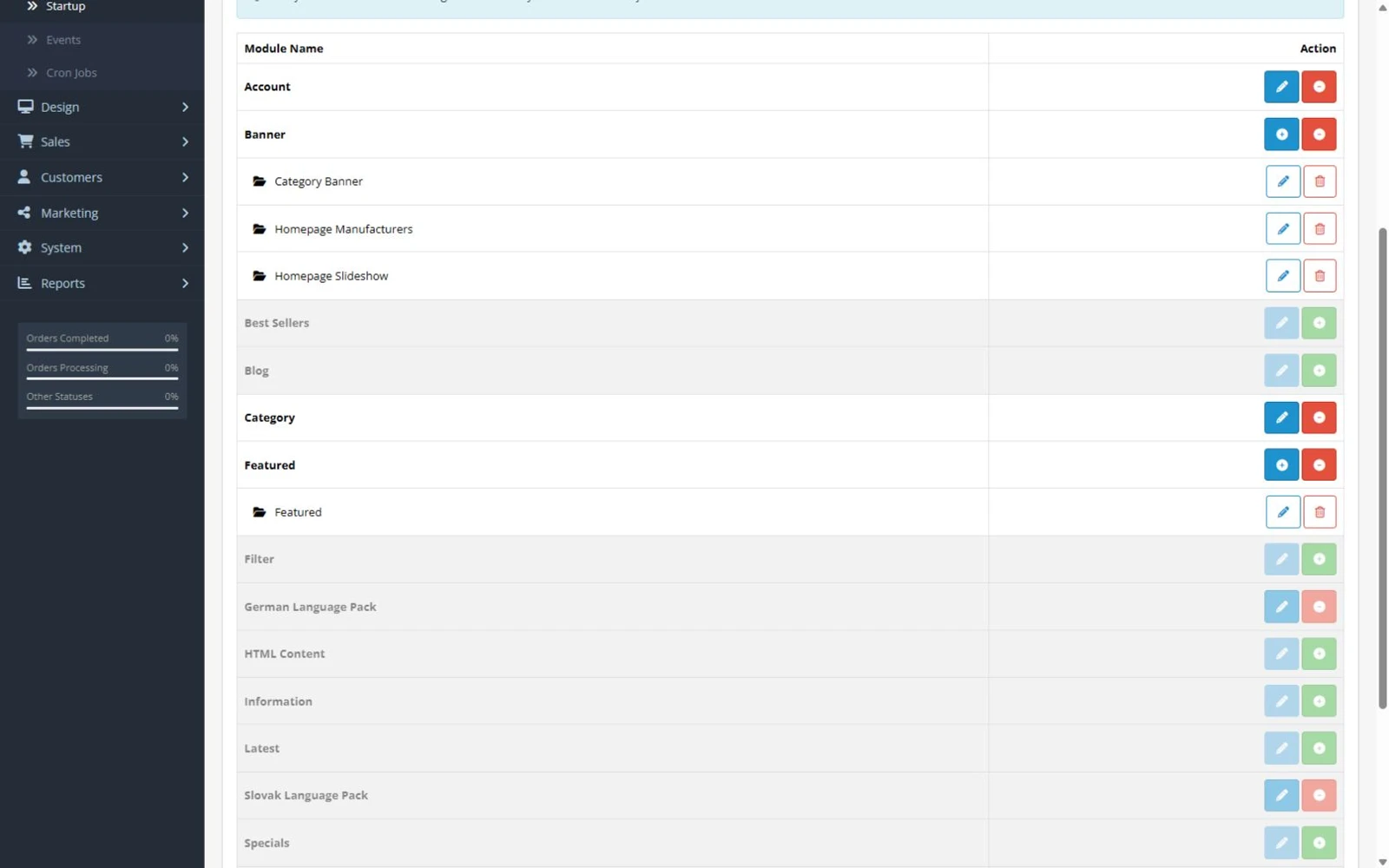
4. Confirm the registered language
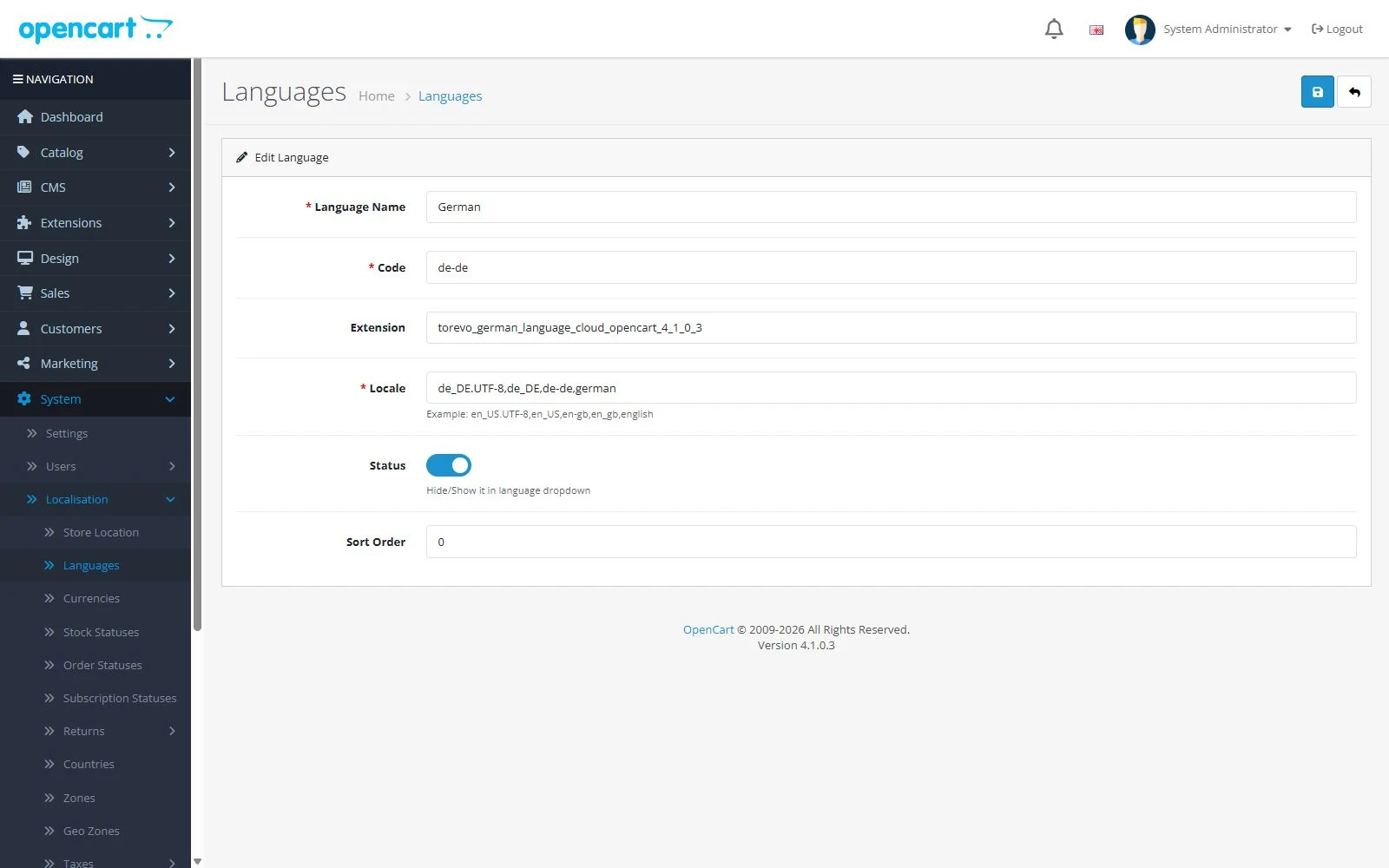
Open System → Localisation → Languages. The new language must be enabled and use the expected code. The example shows German with code de-de. The Slovak pack uses sk.
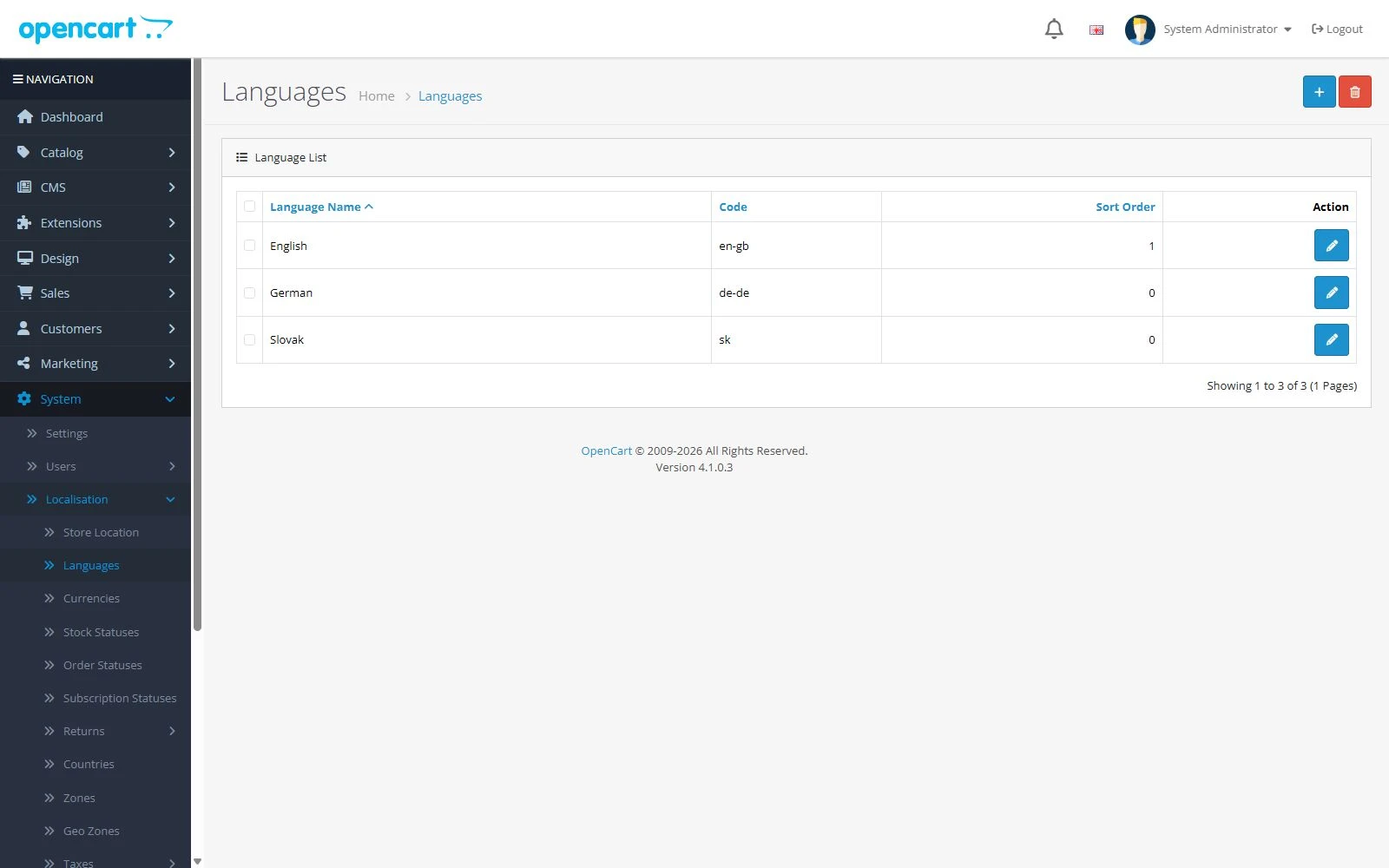
Open the language edit form and verify its name, code, locale, extension, status and sort order. Do not change the extension field or directory code supplied by Torevo.
5. Select storefront and administration languages
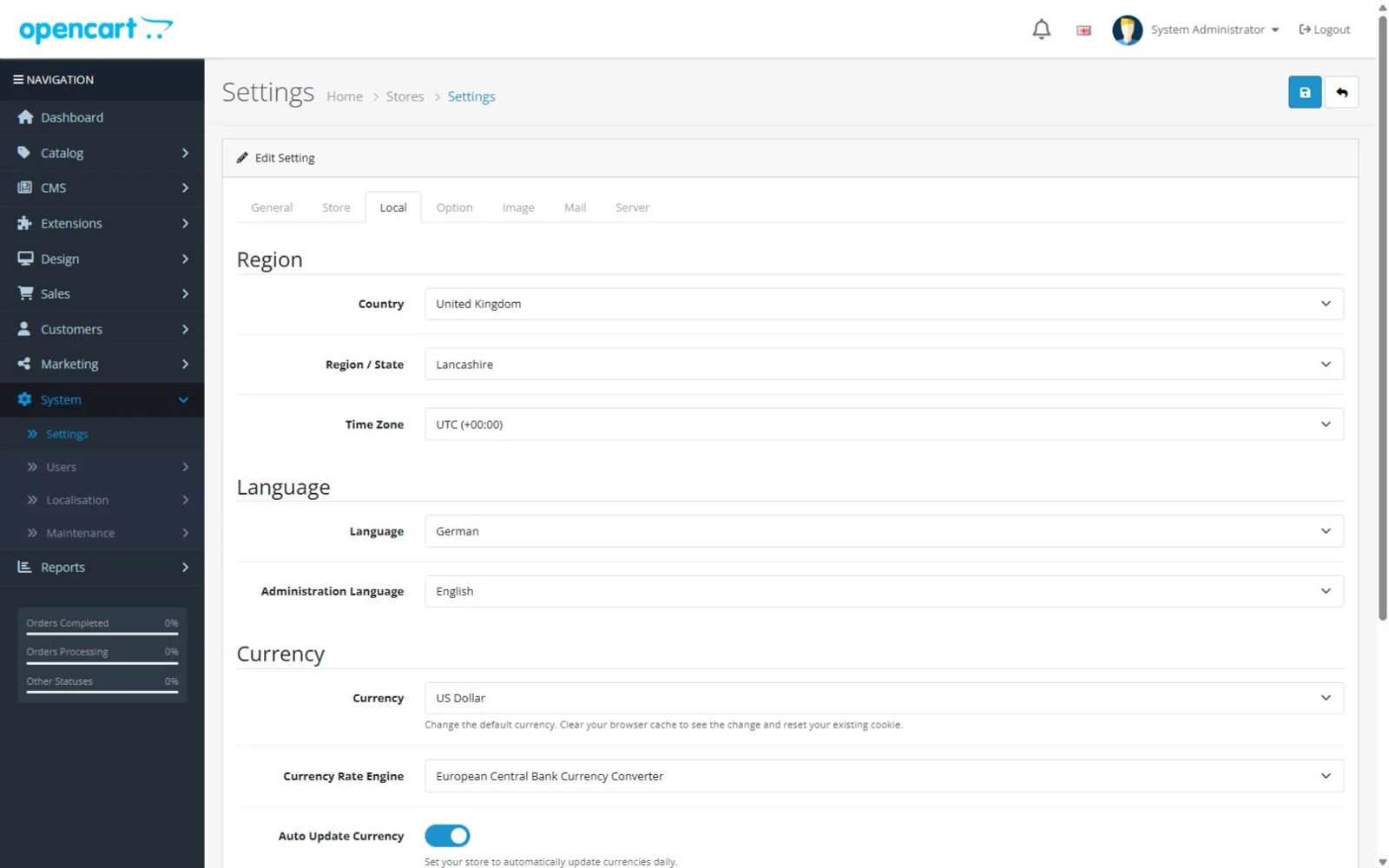
Open the store under System → Settings, then open Local. Select the new language in Language for the storefront and, if required, in Administration Language. OpenCart may require localized fields for the new language, such as Store Name or Meta Title. Complete every required field before saving.
6. Verify the complete purchase journey
After saving, reload the storefront in a new window. Check the home page, category, product, cart, checkout, customer account and system emails. A language pack does not automatically translate merchant-authored products, categories or information pages. The store administrator supplies that content.
OpenCart Cloud
The same two-stage activation applies to OpenCart Cloud:
- download the direct Cloud
.ocmod.zipprepared for the store’s exact version, - upload and install it in Installer without extracting it,
- install the language-pack registration module under Modules,
- confirm the language under Localisation and select it for storefront or administration,
- test storefront and checkout.
OpenCart Cloud support is shown on the specific Marketplace download. The normal multi-version ZIP remains the self-hosted delivery. The Cloud row uses a separate direct installer for only the listed version. The current Cloud artifact is tied to 4.1.0.4. Do not use a 4.1.0.3 Cloud file after the runtime is upgraded. The illustrated German workflow was captured on 4.1.0.3, and the package structure, compatibility and activation path were reviewed again for 4.1.0.4.
Updating
Back up the store and temporarily switch both storefront and Admin defaults to another language. Then:
- uninstall the registration module and original package,
- install the new package prepared for the exact OpenCart version,
- install the registration module again,
- confirm the existing language record and new files,
- restore the preferred defaults and repeat the functional test.
Do not rename a .ocmod.zip package. OpenCart 4 uses its basename as the extension code.
Troubleshooting
| State | Most likely cause | Resolution |
|---|---|---|
| package is installed but the language is missing | registration module was not installed | Extensions → Extensions → Modules → install the relevant Language Pack |
| OpenCart rejects the ZIP | the outer multi-version ZIP or wrong version was uploaded | extract the customer ZIP and select the inner file through VERSION-MAP.md. For Cloud use the direct Cloud file |
| store settings cannot be saved | a required value is missing for the new language | complete every language tab, especially Store Name and Meta Title |
| Admin switches to an unfamiliar language | Administration Language was changed too | restore a familiar Administration Language in store settings |
| some content remains in the original language | it is merchant-authored catalogue content | translate products, categories, attributes and information pages separately |
If the problem remains, send support the package name, exact OpenCart version, failing step and error text. Never send passwords, tokens, a database export or customer data.